Key takeaways
- AI referral traffic often gets misclassified as "direct" or generic "referral" in GA4 — you need custom filters and channel groups to see it clearly
- Setting up a dedicated AI channel group takes about 15 minutes and gives you a permanent, always-on view of traffic from ChatGPT, Perplexity, Claude, Gemini, and others
- AI-referred visitors convert significantly better than typical organic traffic (Ahrefs found AI search drove 12.1% of signups despite representing just 0.5% of traffic)
- GA4's enhanced measurement handles basic click tracking automatically — but AI traffic attribution requires manual configuration
- For deeper visibility into which AI prompts are driving traffic and citations, GA4 alone won't cut it — you'll need a dedicated GEO platform alongside it
AI search traffic is growing fast, and it behaves differently from anything you've tracked before. Users who arrive from ChatGPT or Perplexity have already read a recommendation about your brand. They're warmer, more intentional, and they convert at rates that make traditional organic traffic look sluggish by comparison.
The problem: GA4 doesn't know what to do with them by default. Traffic from chat.openai.com gets lumped into referrals. Traffic from AI assistants that don't pass a referrer header shows up as direct. You're flying blind on one of the fastest-growing acquisition channels right now.
This guide walks you through the full setup — from enabling basic click tracking to building a proper AI channel group — so you can finally see what AI search is actually doing for your business.
Why AI traffic is misclassified in GA4
Before touching any settings, it's worth understanding why this problem exists.
When someone clicks a link in ChatGPT's web interface, the referrer header usually passes through as chat.openai.com. GA4 sees that as a referral source and files it under the generic "Referral" channel. Fine — but it's buried among hundreds of other referral sources, and you'd never think to look for it unless you already knew it was there.
It gets messier with other AI platforms. Perplexity sometimes passes perplexity.ai as the referrer, sometimes not. Claude's interface often strips the referrer entirely, so those visits land as direct traffic. Google AI Overviews are even trickier — clicks from AI Overviews in Google Search typically look like organic Google traffic, with no signal that an AI summary was involved.
The result: your AI traffic is scattered across direct, organic, and referral buckets, and you have no idea how much of it there is or how it converts.
Step 1: Enable enhanced measurement (if you haven't already)
GA4's enhanced measurement handles the basics automatically — outbound clicks, file downloads, scroll depth, video interactions. If you're starting from scratch, make sure this is turned on before anything else.
- Open Google Analytics and click the gear icon (Admin) in the bottom left
- Under the Property column, select "Data streams"
- Click your website data stream
- Find the "Enhanced measurement" section and make sure the main toggle is enabled
With enhanced measurement on, GA4 automatically fires an outbound_click event whenever someone clicks a link that leaves your domain. You don't need to write any code for this. It also captures file downloads (PDFs, docs, zip files) and YouTube video interactions if you embed videos.
To verify it's working: go to Reports → Realtime and click around your site. You should see click and outbound_click events appearing within a few seconds.
This is your foundation. Now let's build the AI-specific layer on top.
Step 2: Identify AI referral sources with a regex filter
The quickest way to see AI traffic right now — without changing any permanent settings — is to apply a filter in your Traffic Acquisition report.
- Go to Reports → Acquisition → Traffic acquisition
- Click "Add filter" (top left of the report)
- Set Dimension to "Session source / medium"
- Set Match type to "matches regex"
- Paste this regex into the Value field:
chatgpt\.com|chat\.openai\.com|perplexity\.ai|claude\.ai|gemini\.google\.com|copilot\.microsoft\.com|you\.com|phind\.com|bing\.com.*ai|bard\.google\.com
- Click Apply
You'll now see only sessions that came from these AI platforms. Check the conversion rates and engagement metrics — this is where it gets interesting. Most teams who do this for the first time are surprised by how well AI-referred visitors behave, even when the raw numbers are small.
This filter is temporary (it disappears when you close the report), which is why the next step matters.
Step 3: Create a permanent AI channel group
A custom channel group lets you see AI traffic as its own permanent channel in every report — no filter-clicking required. This is the setup you actually want to live with long-term.
Create the channel group
- Go to Admin → Data display → Channel groups
- Click "Create new channel group"
- Name it something like "AI Referral Traffic 2026"
Add AI platform rules
Click "Add channel" and create a channel called "AI Search." Then add rules to match your AI sources. For each rule:
- Set the condition to "Session source" → "matches regex"
- Use this pattern:
chatgpt\.com|chat\.openai\.com|perplexity\.ai|claude\.ai|gemini\.google\.com|copilot\.microsoft\.com|you\.com|phind\.com|meta\.ai|grok\.x\.com
You can also add a second rule within the same channel using "OR" logic to catch medium-based signals:
- "Session medium" → "matches regex" →
referral - Combined with source matching above
Save the channel, then save the channel group.
A critical ordering note
GA4 evaluates channel rules from top to bottom and assigns each session to the first rule that matches. If your "AI Search" channel sits below "Referral" in the list, GA4 will classify AI traffic as generic referral before it ever reaches your AI rule.
Move your AI Search channel above the default Referral channel. This is the single most common mistake that causes AI traffic to disappear into the referral bucket even after you've set up the channel group.
Step 4: Track Google AI Overviews separately
AI Overview clicks are the trickiest to track because they look like regular Google organic traffic. When someone clicks through from an AI Overview in Google Search, the referrer is google.com and the medium is organic — identical to a standard blue-link click.
There are a few approaches here, and none of them are perfect yet.
Google Search Console comparison
The most reliable method right now is cross-referencing GA4 with Google Search Console. GSC is starting to surface some AI Overview impression and click data, though coverage is still limited. If you connect GA4 to GSC (Admin → Product links → Search Console links), you can compare landing page performance across both tools.
GTM-based tracking (advanced)
Some teams use Google Tag Manager to fire a custom event when specific URL patterns or page elements associated with AI Overview clicks are detected. This requires custom JavaScript and is fragile — Google's markup changes frequently. If you go this route, the LinkedIn guide from Warren Hance covers the GTM variable setup in detail, but expect to maintain it as Google updates its interface.
For most teams, the honest answer is: AI Overview attribution is still a partially unsolved problem in 2026. The GSC integration is your best bet for now.
Step 5: Set up conversion tracking for AI traffic
Knowing that AI traffic exists is only half the picture. You need to know whether it converts.
Mark your key events as conversions
- Go to Admin → Events
- Find events like
purchase,form_submit,sign_up, or whatever represents a conversion for your business - Toggle "Mark as conversion" for each one
Build an AI traffic exploration
Once you have conversions set up, create a custom exploration to see how AI traffic converts:
- Go to Explore → Blank exploration
- Add dimensions: Session default channel group (use your custom channel group), Landing page
- Add metrics: Sessions, Conversions, Conversion rate, Engaged sessions
- Filter to show only your "AI Search" channel
This gives you a clean view of which landing pages AI-referred visitors hit first, and how many of them convert. You'll almost certainly find that certain pages dramatically outperform others for AI traffic — those are the pages AI models are citing, and they're worth knowing about.
Step 6: Build a custom AI traffic dashboard
Rather than rebuilding this exploration every time, save it as a report or build a Looker Studio dashboard that pulls from your GA4 data.
A useful AI traffic dashboard includes:
- Sessions by AI source (ChatGPT vs Perplexity vs Claude vs others) over time
- Conversion rate by AI source vs other channels
- Top landing pages for AI-referred traffic
- Engaged session rate and average engagement time for AI vs organic vs direct
- Week-over-week trend for total AI referral sessions
If your team uses Looker Studio, the GA4 connector makes this straightforward. Set up a date range control and a channel filter, and you have a shareable report that updates automatically.
The AI traffic black box: what you can't track in GA4
Here's the honest part of this guide: GA4 only shows you what happens after someone clicks through to your site. It tells you nothing about:
- How often your brand appears in AI responses (with no click)
- Which prompts trigger AI models to mention you
- Whether AI models recommend competitors instead of you
- How your citation rate is trending over time
This is a significant blind spot. Ahrefs reported that AI search drove 12.1% of their signups despite accounting for just 0.5% of traffic — which means the conversion rate is extraordinary, but also that most of the value (brand impressions in AI responses that don't result in clicks) is invisible to GA4 entirely.
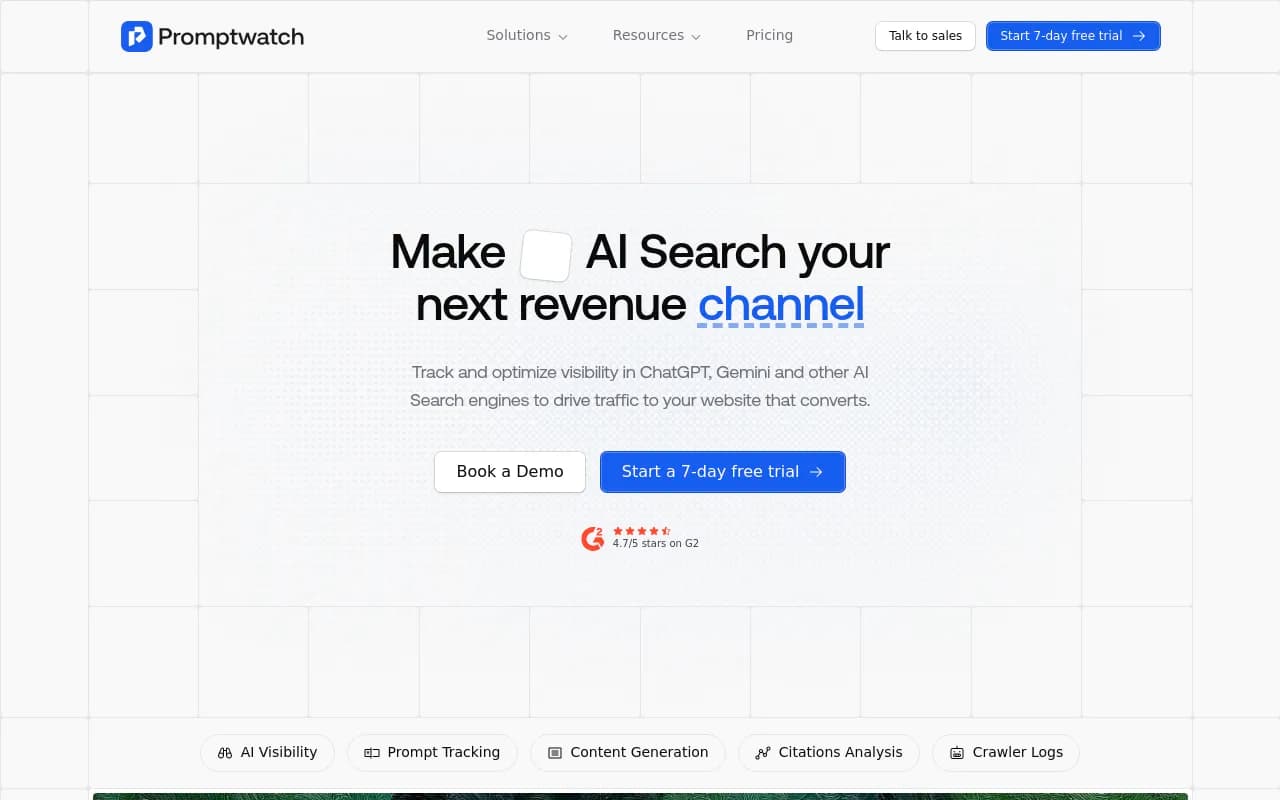
For that layer of visibility, you need a dedicated GEO platform. Promptwatch tracks how your brand appears across ChatGPT, Perplexity, Claude, Gemini, and seven other AI models — including which prompts trigger citations, which pages get cited, and how your visibility compares to competitors. It also has AI crawler logs that show you exactly which pages AI bots are reading on your site, which helps explain why certain pages get cited more than others.
The combination of GA4 (for post-click behavior) and a GEO platform (for pre-click visibility) gives you the full picture.
Comparison: GA4 setup methods for AI traffic
| Method | Setup time | Permanence | What it shows |
|---|---|---|---|
| Quick regex filter | 2 minutes | Session only | AI traffic in current report view |
| Custom channel group | 15 minutes | Permanent | AI as its own channel in all reports |
| GSC integration | 10 minutes | Permanent | AI Overview impressions/clicks (partial) |
| GTM custom events | 1-2 hours | Permanent (fragile) | AI Overview click events |
| GEO platform (e.g. Promptwatch) | 30 minutes | Permanent | Pre-click visibility, citations, prompts |
Tools that complement your GA4 AI tracking setup
GA4 is the foundation, but several tools can extend what you can see and act on.
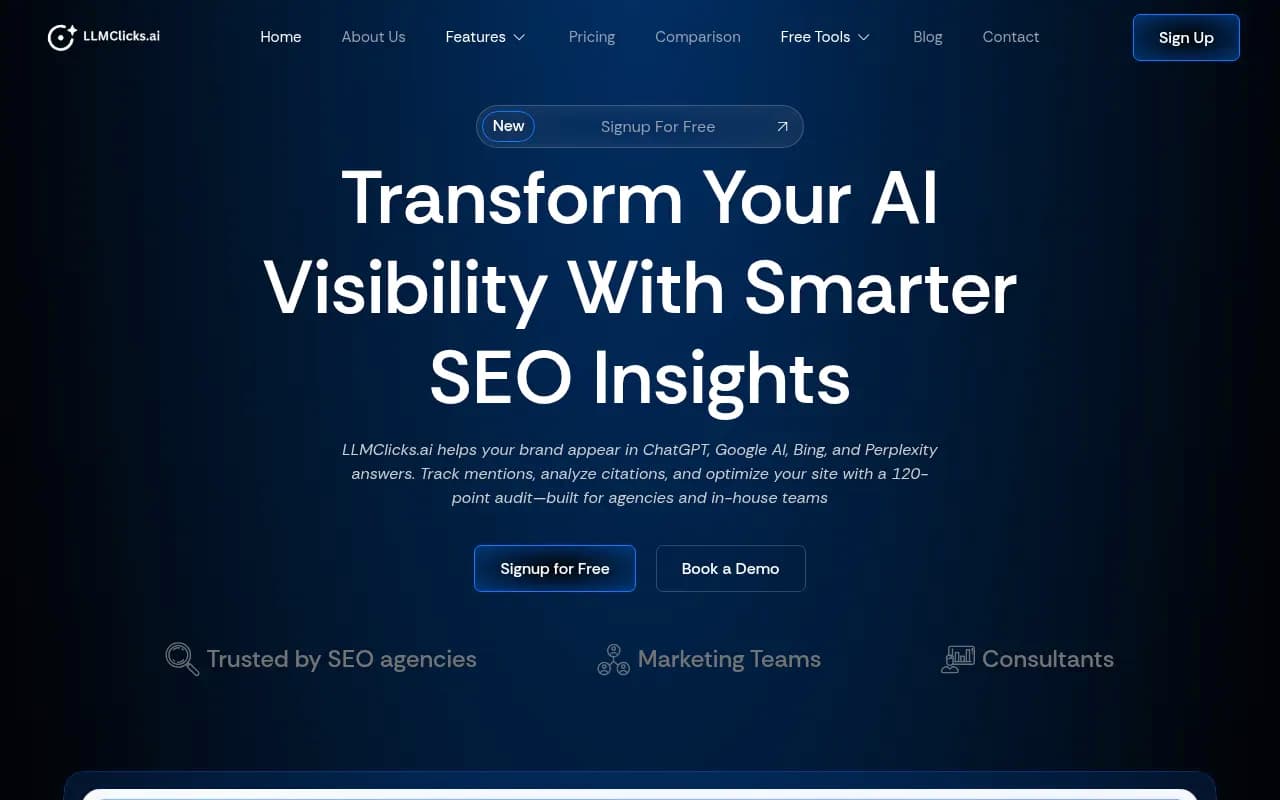
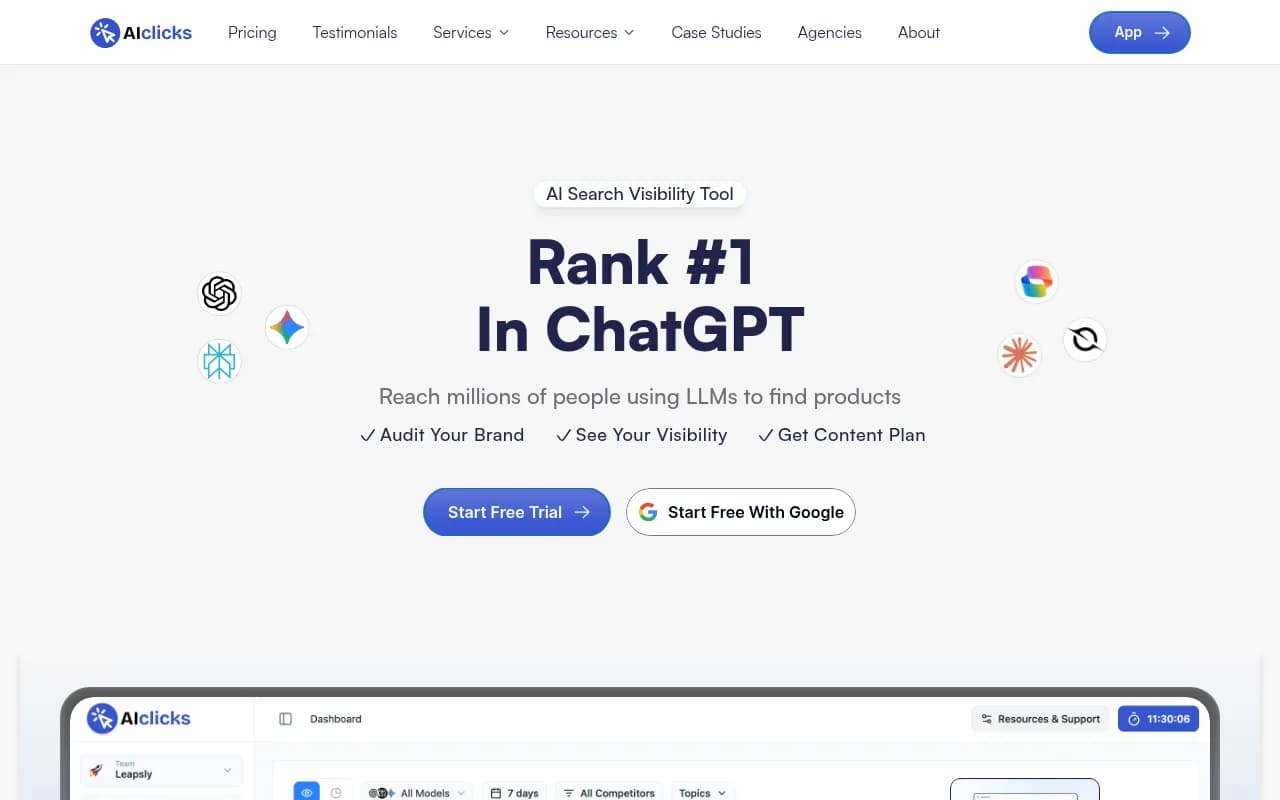
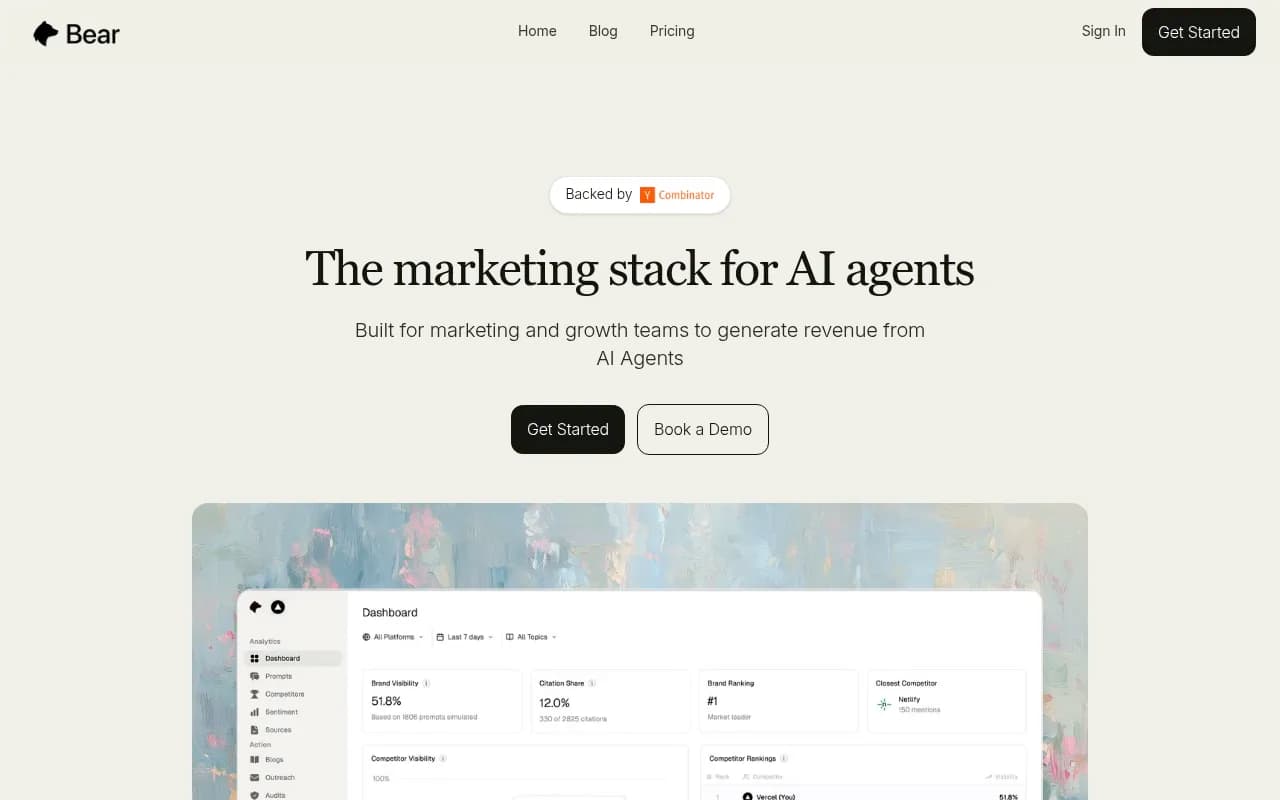
For tracking AI visibility beyond clicks:
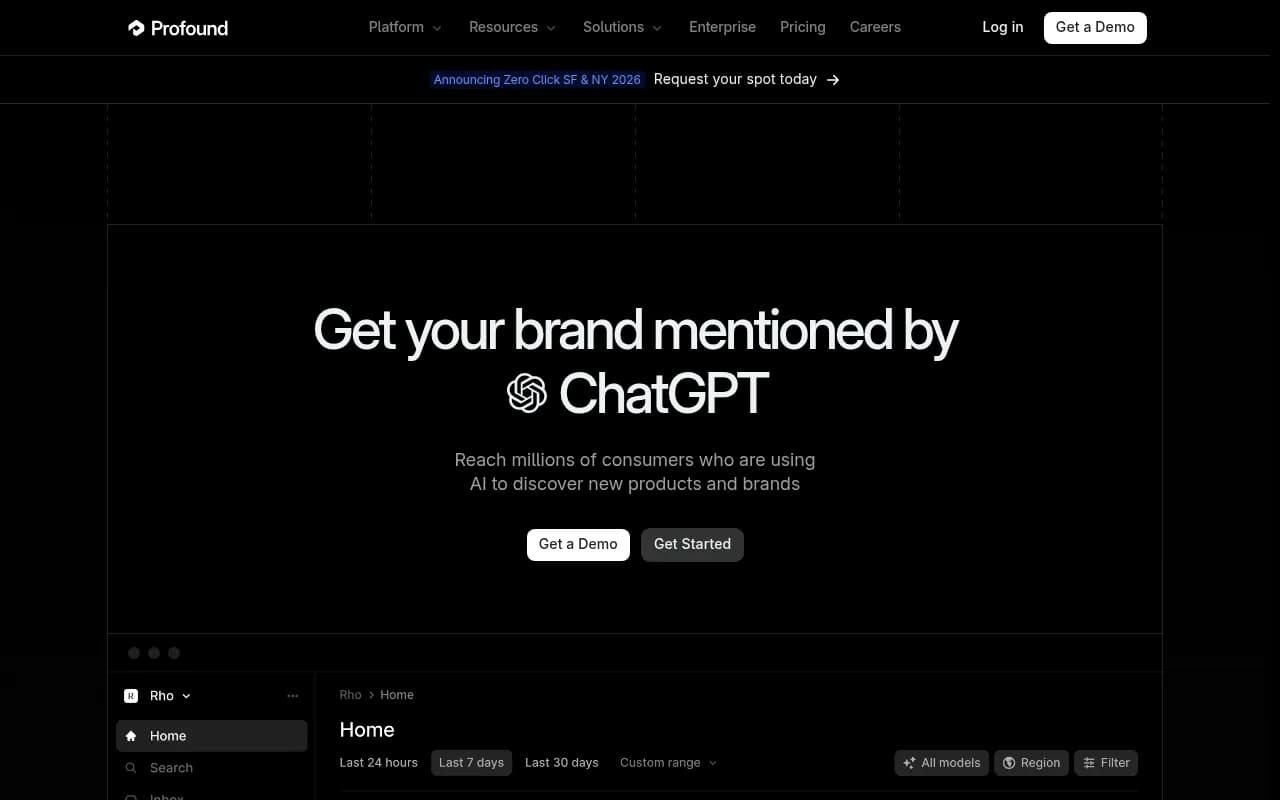
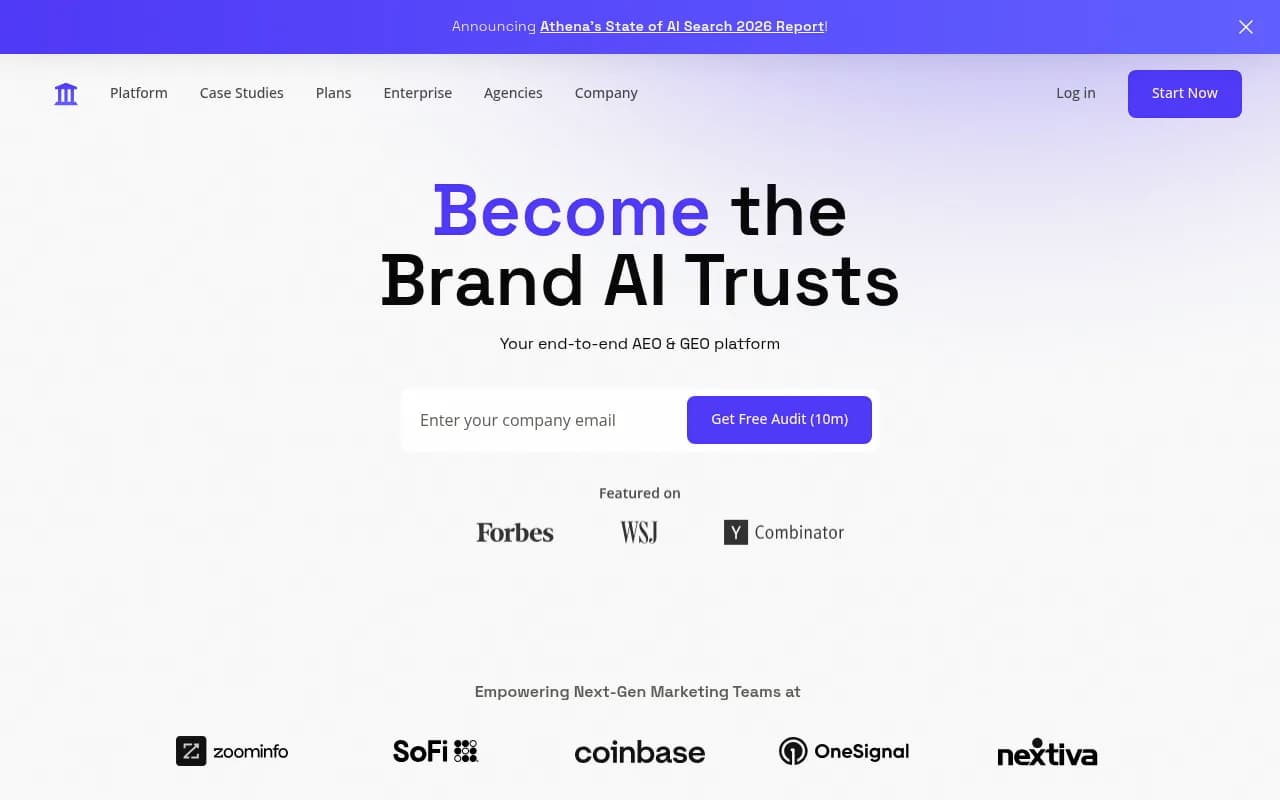
For deeper prompt-level intelligence and content optimization:
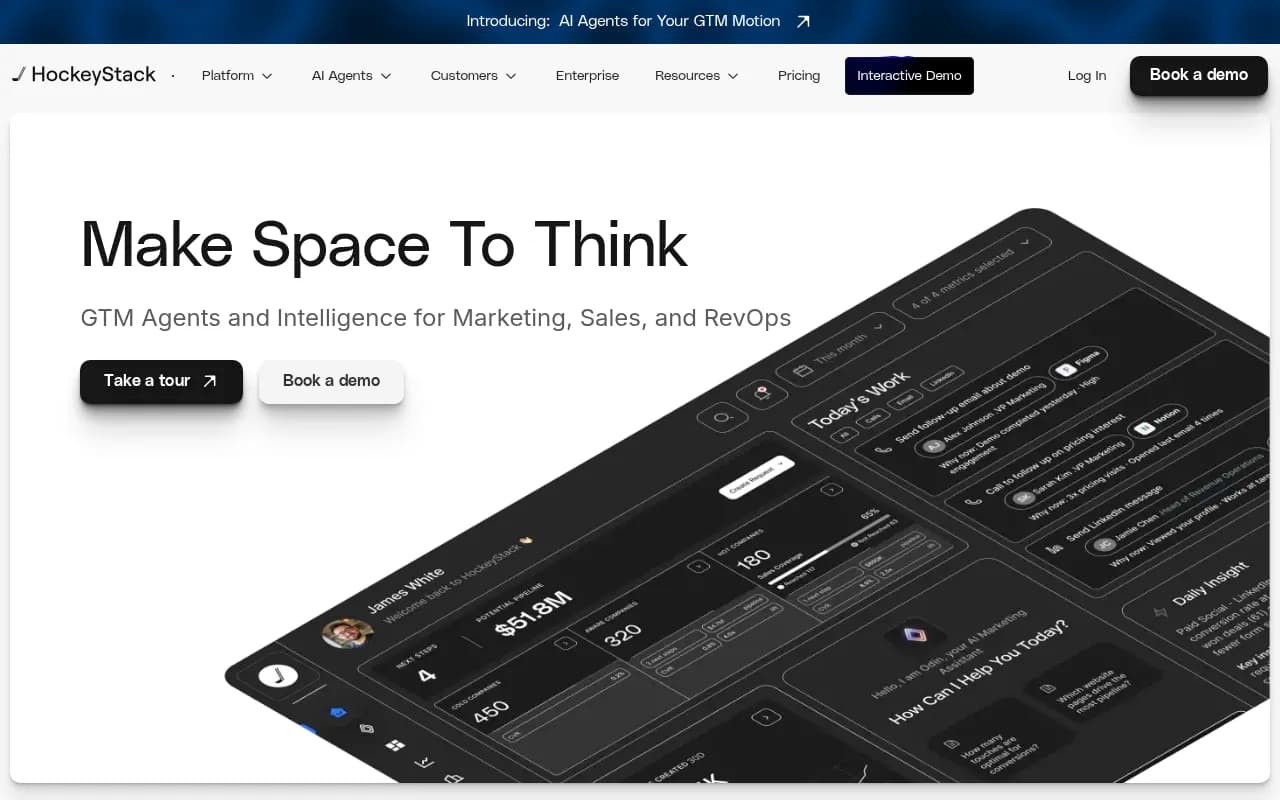
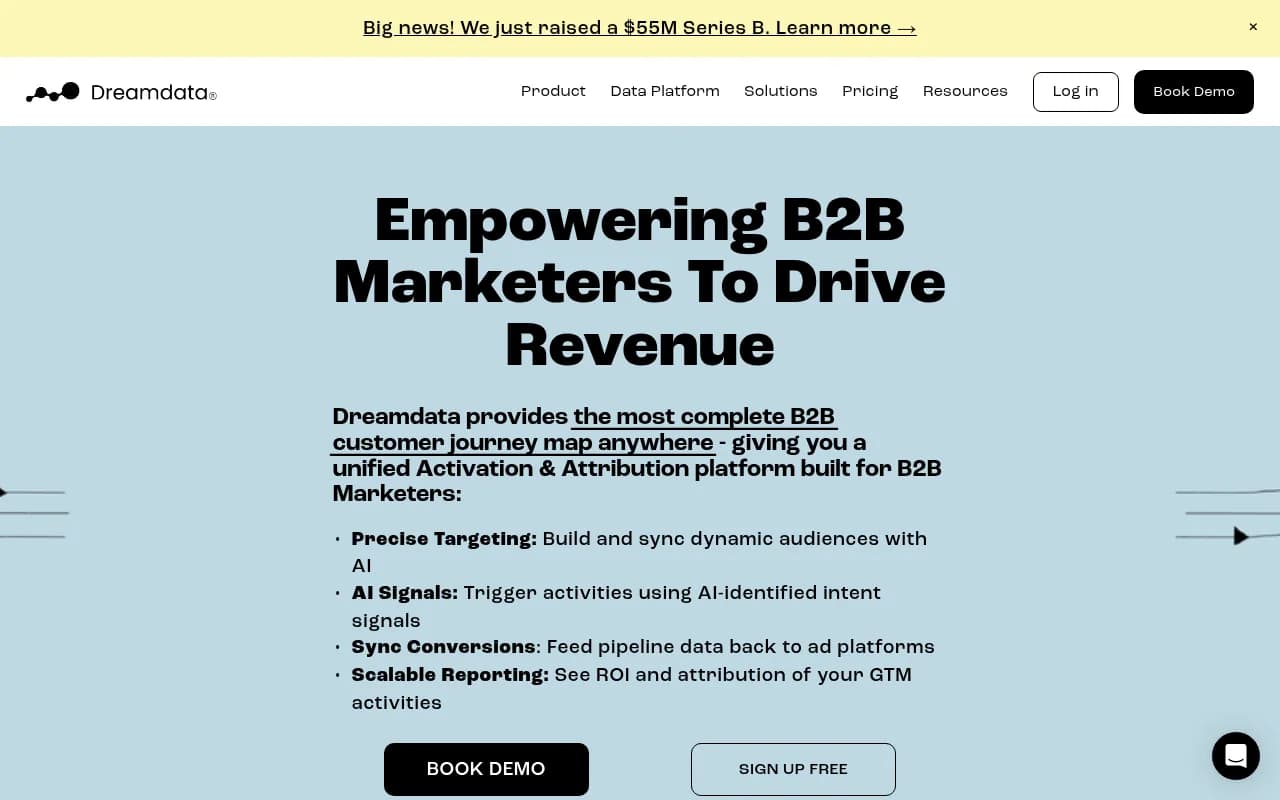
For connecting AI visibility data to revenue:
Common mistakes to avoid
A few things that trip up most teams when they first set this up:
Wrong channel group ordering. As mentioned above, if "Referral" sits above your "AI Search" channel in the group rules, GA4 will classify AI traffic as referral before your rule fires. Always put AI Search above Referral.
Missing AI sources. The list of AI platforms sending referral traffic is growing. Check your referral report monthly and add new sources (like you.com, phind.com, or newer entrants) to your regex as they appear.
Ignoring direct traffic. A meaningful chunk of AI-driven visits will never show a referrer — especially from Claude and some Perplexity use cases. Your direct traffic numbers may be higher than you think because of this. One workaround: look for spikes in direct traffic that correlate with AI visibility increases.
Not segmenting by landing page. AI models cite specific pages, not your site in general. Always break down AI traffic by landing page — the distribution is usually very uneven, and knowing which pages are getting cited tells you where to focus your content efforts.
Treating GA4 as the complete picture. GA4 measures clicks. AI search influences decisions before the click. Both matter, and you need both to understand what's actually happening.
Putting it all together
The setup described here takes about an hour from start to finish. After that, you have:
- A permanent AI Search channel in GA4 that tracks sessions from ChatGPT, Perplexity, Claude, Gemini, and others
- Conversion tracking that shows how AI-referred visitors behave compared to other channels
- A custom exploration or dashboard for ongoing monitoring
- GSC integration for partial AI Overview visibility
That's a solid foundation. The next step — once you can see that AI traffic is converting well — is figuring out how to get more of it. That means understanding which prompts are driving citations, which competitors are appearing instead of you, and what content gaps exist on your site. GA4 can't answer those questions, but the GEO platforms listed above can.
Start with the channel group setup today. It takes 15 minutes and will immediately show you data you've been missing.