Key takeaways
- AI crawler errors (403s, timeouts, missing pages) directly block your content from being cited in ChatGPT, Claude, Perplexity, and other AI search engines
- 403 Forbidden errors usually mean your firewall or security rules are blocking AI bots -- often unintentionally
- Timeouts happen when your server takes too long to respond, causing AI crawlers to give up and move on to faster competitors
- Missing pages (404s, soft 404s) waste AI crawler budgets and signal poor site quality, reducing how often bots return
- Real-time AI crawler logs (available in tools like Promptwatch) show you exactly which pages AI models are trying to reach and where they're failing
Why AI crawler errors matter more than you think
You've spent months creating content. Your site ranks in Google. But when someone asks ChatGPT or Perplexity about your topic, your brand doesn't show up. The culprit? AI crawlers tried to read your site and hit a wall.
Unlike traditional search engines that retry failed requests and give you second chances, AI models move fast. If ChatGPT's crawler gets a 403 or times out, it doesn't wait around -- it cites your competitor instead. By the time you notice the problem, you've already lost weeks or months of potential citations.
The stakes are different now. Google might forgive a few crawl errors if your content is strong enough. AI models don't have that patience. They need instant access to fresh, fast-loading pages. One bad response code can mean the difference between being cited 100 times a month or zero.
Understanding the three most common AI crawler errors
403 Forbidden: Your firewall is blocking the future
A 403 error means the server understood the request but refused to fulfill it. For AI crawlers, this usually happens because:
Overzealous security rules: Cloudflare, Sucuri, Wordfence, and other security tools often block AI bots by default. They see patterns that look like scraping (which, technically, AI crawling is) and shut them down. The problem: you're blocking legitimate AI models that millions of people use to find information.
IP-based blocking: Some hosting providers or CDNs maintain blocklists of "suspicious" IP ranges. AI companies rotate IPs frequently, so yesterday's safe address becomes today's blocked one. You won't know until you check your logs.
User-agent discrimination: Your robots.txt or server config might explicitly block certain user agents. If you added rules years ago to stop scrapers, you might be inadvertently blocking GPTBot (OpenAI), Claude-Web (Anthropic), or PerplexityBot.
Geographic restrictions: If your site blocks traffic from certain countries for compliance reasons, you might be blocking AI crawlers that route through those regions.
Here's what makes 403s particularly insidious: they're silent failures. Your site loads fine for human visitors. Google can still crawl it. But AI models get turned away at the door, and you never see the rejection unless you're actively monitoring AI crawler logs.
How to diagnose 403s:
- Check your firewall logs for blocked requests from known AI user agents (GPTBot, Claude-Web, PerplexityBot, GoogleOther, etc.)
- Review your robots.txt file -- make sure you're not accidentally disallowing AI crawlers
- Test your site with different user agents using curl or browser dev tools
- Look for patterns: are 403s happening on specific pages (like login pages, which should be blocked) or sitewide?
How to fix 403s:
- Whitelist AI crawler user agents in your firewall (Cloudflare, Sucuri, etc.)
- Update robots.txt to explicitly allow AI bots:
User-agent: GPTBot\nAllow: / - Remove overly broad IP blocks that might catch AI crawlers
- If you're blocking AI crawlers intentionally on certain pages (draft content, paywalled articles), make sure those pages aren't linked from your public site
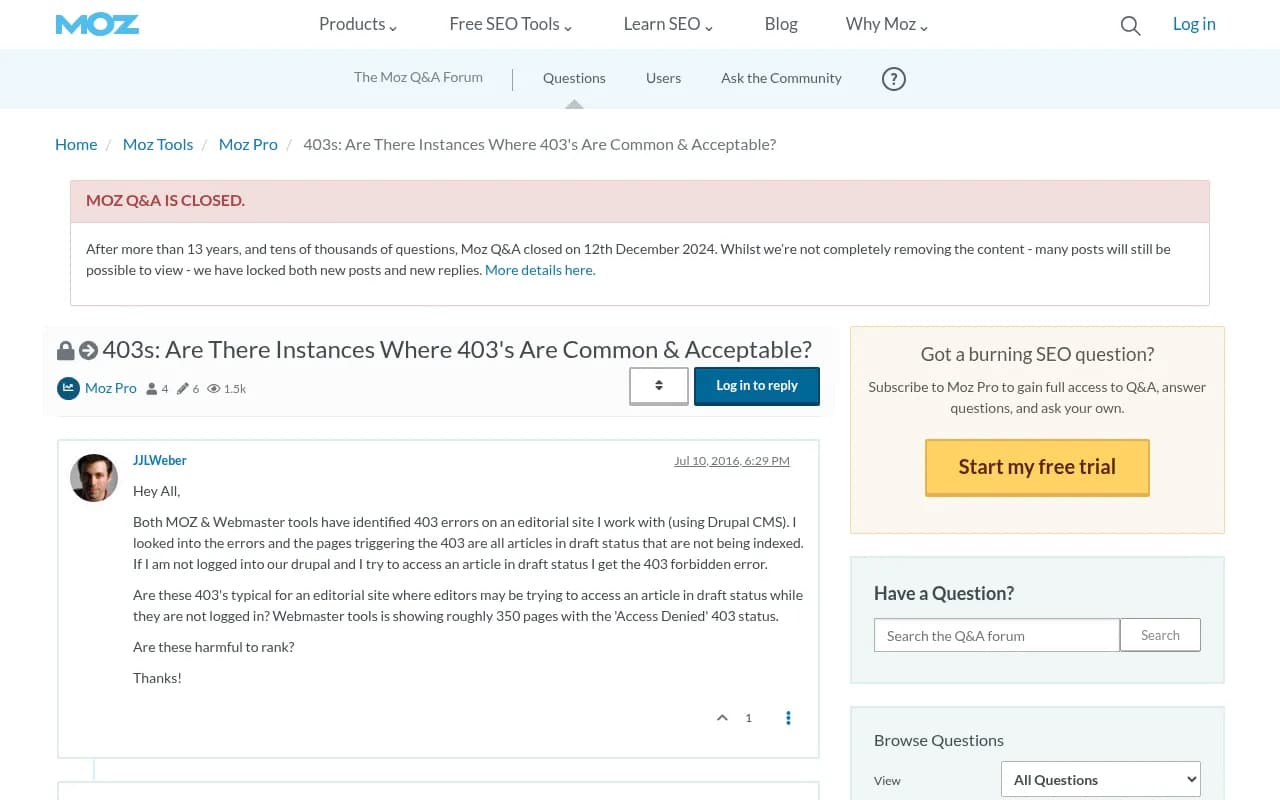
One edge case worth noting: 403s on draft or private content are expected and harmless. If you're running a CMS like Drupal or WordPress and editors see 403s when trying to access unpublished articles while logged out, that's working as intended. The issue is when public pages return 403s to AI crawlers.
Timeouts: Your server is too slow for AI's pace
Timeout errors (often logged as 504 Gateway Timeout or simply "request timeout") happen when your server takes too long to respond. AI crawlers have strict time limits -- usually 10-30 seconds. If your page doesn't load in that window, the crawler gives up.
Why timeouts hurt more with AI crawlers:
AI models crawl differently than Google: Traditional search engines might retry a timed-out request later. AI models are often crawling in real-time to answer a user's question right now. If your page times out, the model moves to the next source immediately.
Compound effect: Slow pages don't just lose one citation opportunity. AI models learn which sites are fast and reliable. Repeated timeouts train the model to deprioritize your domain in future responses.
Mobile-first reality: Many AI queries happen on mobile devices with spotty connections. If your server is barely fast enough on desktop, it's timing out on mobile.
Common causes of timeouts:
- Unoptimized database queries: Your CMS is running expensive queries on every page load
- Third-party scripts: Analytics, ads, and tracking pixels that block page rendering
- Insufficient server resources: Your hosting plan can't handle traffic spikes
- CDN misconfigurations: Your CDN is routing requests inefficiently or not caching properly
- Large uncompressed assets: Images, videos, or JavaScript files that take too long to transfer
How to diagnose timeouts:
- Check your server logs for 504 errors or requests that exceed 10 seconds
- Use tools like GTmetrix or WebPageTest to measure actual load times
- Monitor server CPU and memory usage during peak traffic
- Review slow query logs in your database
How to fix timeouts:
- Enable caching at every level: browser cache, CDN cache, server-side cache
- Optimize database queries and add indexes where needed
- Compress images and use modern formats (WebP, AVIF)
- Lazy-load non-critical resources
- Upgrade your hosting plan if you're consistently hitting resource limits
- Use a CDN to serve static assets faster
- Defer or async-load third-party scripts
Missing pages: 404s and soft 404s that waste crawler budgets
A 404 error means the page doesn't exist. A soft 404 is worse: the page returns a 200 OK status but shows "page not found" content. Both are problems for AI crawlers.
Why missing pages matter:
Wasted crawler budget: AI models allocate a certain amount of time and resources to each domain. Every 404 they hit is a wasted opportunity to crawl a real page.
Quality signals: High 404 rates signal poor site maintenance. AI models may reduce how often they crawl your site if they keep hitting dead ends.
Broken citation chains: If an AI model cites your site once and users click through to a 404, that's a bad user experience. The model learns to avoid citing you in the future.
Common sources of 404s:
- Deleted content: You removed old blog posts or product pages without redirecting them
- URL structure changes: You migrated to a new CMS and broke old URLs
- Broken internal links: Your site links to pages that no longer exist
- External links: Other sites link to pages you've removed
- Pagination issues: Category pages with
/page/999that never existed
How to diagnose missing pages:
- Check Google Search Console for 404 errors (AI crawlers often follow similar paths as Googlebot)
- Review your server logs for 404 responses
- Use a crawler like Screaming Frog to find broken internal links
- Monitor referrer logs to see which external sites link to dead pages
How to fix missing pages:
- Set up 301 redirects from old URLs to relevant new pages
- Fix broken internal links
- Reach out to high-authority sites linking to 404s and ask them to update the link
- Use a 410 Gone status for pages you intentionally removed (tells crawlers not to retry)
- Implement a custom 404 page that helps users (and crawlers) find related content
Server errors: The site-wide killers
Beyond 403s, timeouts, and 404s, there's a category of errors that can take your entire site offline for AI crawlers: server errors (5xx status codes).
500 Internal Server Error: Something broke on your server. Could be a faulty plugin, a code error, or insufficient memory. AI crawlers see this and back off immediately.
502 Bad Gateway: Your server depends on another server (like a database or API) that failed to respond. Common during traffic spikes or when upstream services go down.
503 Service Unavailable: Your server is temporarily overloaded or in maintenance mode. AI crawlers will retry later, but you're losing citations in the meantime.
These errors are rare but catastrophic. If your site returns 5xx errors consistently, AI models will stop crawling you entirely until the issue resolves.
How to prevent server errors:
- Monitor server health with uptime tools (UptimeRobot, Pingdom)
- Set up error alerts so you know immediately when something breaks
- Load test your site to understand its limits
- Have a maintenance mode page that returns 503 (not 200) during planned downtime
- Keep backups and have a rollback plan for bad deployments
DNS errors: When AI crawlers can't even find your site
DNS errors happen when the domain name can't be resolved to an IP address. For AI crawlers, this is a dead end. They can't reach your site at all.
Causes:
- DNS server downtime: Your DNS provider (Cloudflare, Route 53, etc.) is having issues
- Misconfigured DNS records: You changed hosting providers and forgot to update DNS
- Expired domains: Your domain registration lapsed
- Propagation delays: Recent DNS changes haven't propagated globally yet
DNS errors are usually temporary, but they're invisible to you if you're checking from a location where DNS is working fine. AI crawlers might be hitting DNS errors in certain regions while your site loads perfectly for you.
How to diagnose DNS errors:
- Use tools like DNS Checker or What's My DNS to verify your domain resolves globally
- Check your DNS provider's status page for outages
- Review DNS change logs to see if recent updates caused issues
How to fix DNS errors:
- Use a reliable DNS provider with high uptime (Cloudflare, AWS Route 53)
- Set up DNS monitoring to alert you when resolution fails
- Keep your domain registration current
- After DNS changes, wait 24-48 hours for full propagation before assuming something is broken
Robots.txt failures: The silent blocker
Before crawling your site, AI bots check your robots.txt file to see if they're allowed. If they can't access robots.txt (because it's timing out, returning an error, or misconfigured), they won't crawl your site at all.
This is different from intentionally blocking bots in robots.txt (which is a choice). A robots.txt failure means the bot wants to respect your rules but can't read them, so it plays it safe and doesn't crawl.
How to diagnose robots.txt issues:
- Visit
yoursite.com/robots.txtand make sure it loads quickly - Check for syntax errors (use Google's robots.txt tester)
- Verify the file isn't blocked by your firewall or CDN
How to fix robots.txt issues:
- Host robots.txt on a fast, reliable server (not a slow CMS-generated route)
- Keep the file small and simple
- Test it from different locations and user agents
- If you don't need custom rules, use a minimal robots.txt that allows everything
How to monitor AI crawler errors in real time
The only way to catch these errors before they cost you citations is to monitor AI crawler activity on your site. Traditional SEO tools like Google Search Console won't help -- they only track Googlebot.
You need visibility into which AI models are crawling your site, which pages they're requesting, and what errors they're encountering.
Promptwatch provides real-time AI crawler logs that show:
- Every request from GPTBot, Claude-Web, PerplexityBot, and other AI crawlers
- Which pages they accessed and which returned errors
- Response times and status codes
- Patterns over time (are errors increasing? decreasing?)
This is the action loop: you can't fix what you can't see. Once you have logs, you can prioritize fixes based on which errors are most common and which pages AI models are trying to reach most often.
Other tools that offer AI crawler monitoring:

Comparison: AI crawler errors vs traditional SEO crawler errors
| Aspect | Traditional SEO crawlers | AI crawlers |
|---|---|---|
| Retry behavior | Will retry failed requests multiple times over days | Often move on immediately to next source |
| Timeout tolerance | 30-60 seconds typical | 10-30 seconds, sometimes less |
| 404 handling | Track and report, may revisit later | Waste of crawler budget, reduces future crawl frequency |
| 403 impact | May still index if content is linked elsewhere | Complete block, no citation possible |
| Robots.txt failure | May crawl anyway after delay | Will not crawl at all |
| Error visibility | Reported in Search Console | Requires specialized monitoring tools |
Fixing errors isn't enough -- you need to optimize for AI crawlers
Once you've eliminated errors, the next step is making your content easy for AI models to understand and cite. That means:
- Structured data: Use schema markup to help AI models extract key facts
- Clear headings: AI models parse content by headings -- make them descriptive
- Concise answers: Put key information in the first paragraph
- Internal linking: Help AI crawlers discover your best content
- Fast load times: Even if you're not timing out, faster is better
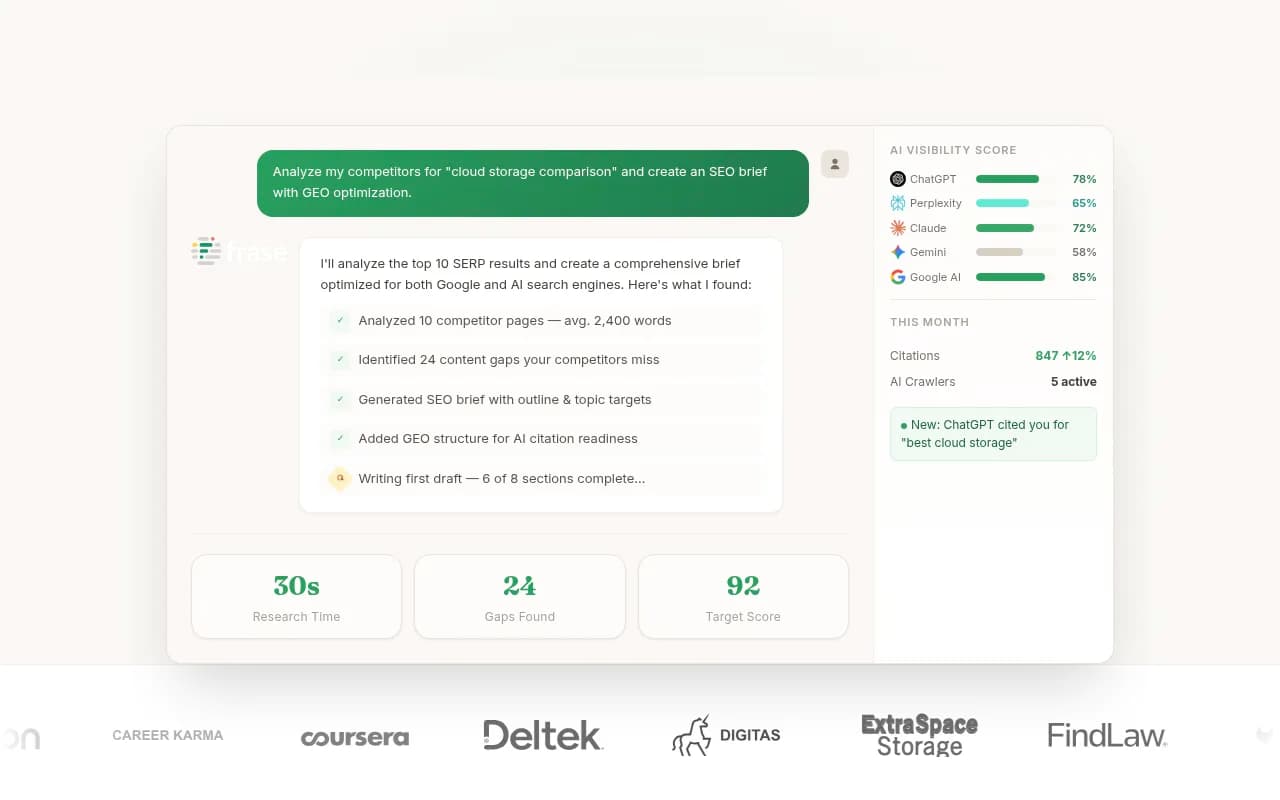
Tools like Promptwatch go beyond error monitoring -- they show you which prompts competitors are getting cited for that you're not, then help you create content that fills those gaps.

What to do right now
- Audit your firewall settings: Make sure you're not blocking AI crawler user agents
- Check your robots.txt: Verify it loads quickly and doesn't block AI bots
- Review your 404s: Set up redirects for high-traffic dead pages
- Test your load times: Use GTmetrix or WebPageTest to find slow pages
- Set up AI crawler monitoring: Use a tool like Promptwatch to see real-time logs
- Fix the biggest errors first: Prioritize site-wide issues (DNS, server errors) over individual 404s
AI search is already here. ChatGPT, Claude, Perplexity, and Gemini are answering millions of queries every day. If your site is throwing errors when they try to crawl it, you're invisible. Fix the errors, monitor the logs, and optimize for AI -- or watch your competitors get all the citations.