Key takeaways
- A spreadsheet is a legitimate way to start tracking Google AI Overviews. It breaks down at roughly 50 to 100 prompts, so design it for migration from day one.
- Use three tabs: a prompt list, a raw observation log, and a summary. Keep one row per prompt per date per source.
- Capture total sources in each AI Overview, source type, and content type. These columns let you calculate share of slots and spot patterns, and they map directly to what paid tools store.
- Manual checks are noisy. Location, personalization, and AI Overview volatility all affect what you see, so record the conditions of every check.
- Move to a tool when you spend more than an hour or two a week on checks, need daily data, or need more than one country or model.
Why start with a spreadsheet at all
Most people who ask about AI Overview tracking are in one of two spots. Either they have no budget approved yet and need evidence to get one, or they have a budget and don't know what to measure. A spreadsheet solves both. It forces you to decide which prompts matter, what counts as a win, and what you'd do with the answer.
I think that's the real value. The spreadsheet is cheap, but the thinking it forces is what you're actually buying. Teams that skip straight to a tool often end up with a dashboard full of numbers nobody has defined.
The catch is that manual tracking doesn't scale and doesn't catch fast changes. So the goal here isn't a clever sheet. It's a sheet with a structure that a tool can ingest later without you redoing six months of work.
What you are actually tracking
An AI Overview is the generated summary at the top of some Google results, with a set of linked sources. For each query you care about, there are four questions:
- Does an AI Overview appear at all?
- Is your brand mentioned in the text?
- Is one of your pages cited as a source?
- Who else is cited, and what kind of pages are they?
That's it. Everything in the spreadsheet serves one of those questions. If a column doesn't, cut it.
Mentions versus citations
Keep these separate. A mention means your brand name appears in the generated answer. A citation means one of your URLs is in the source list. You can have one without the other, and the fix is different. Mentioned but not cited usually points to a content or crawlability problem. Cited but never named usually means your page is a reference source but the answer doesn't attribute anything to your brand.
The three-tab structure
Keep it simple. Three tabs is enough.
Tab 1: Prompts
This is your master list of queries. One row per query, and it rarely changes.
| Column | Purpose |
|---|---|
| Prompt ID | Short unique ID like P001. You'll need this for joins later |
| Query text | Exact wording you search |
| Topic | Group for roll-ups, such as pricing, comparisons, how-to |
| Intent | Informational, commercial, branded, competitor comparison |
| Priority | High, medium, low |
| Target country | Country and language you check from |
| Target URL | The page you hope gets cited |
| Date added | For tracking when the list changed |
The prompt types (branded, competitor comparison, and organic non-branded) matter because paid tools classify prompts the same way. If you tag them now, the import is painless.
Start with 20 to 30 queries. Not 200. You will not keep up with 200.
Tab 2: Observations (the raw log)
This is the tab that matters. One row per prompt per check date per cited source. It gets long fast, and that's fine.
| Column | Purpose |
|---|---|
| Check date | ISO format, YYYY-MM-DD |
| Prompt ID | Joins to the Prompts tab |
| AIO present | Yes or No |
| Brand mentioned in text | Yes or No |
| Source position | 1, 2, 3... in the source list |
| Source domain | Domain of the cited page |
| Source URL | Full URL |
| Is our domain | Yes or No |
| Is competitor | Yes or No, plus name |
| Source type | Own site, competitor, publisher, forum, video, Google-owned |
| Google-owned source | Yes or No (YouTube, google.com) |
| Content type | Listicle, product page, how-to, news, video, social post, landing page, comparison |
| Total sources in AIO | Count of all sources shown |
| Checker | Who ran the check |
| Conditions | Location, logged in or out, device, browser |
Long format is the key design decision. Resist the temptation to build a wide grid with dates as columns. It looks tidy for a week, then becomes impossible to filter, pivot, or export. Long format with one row per observation is what every analytics tool and database expects.
If a prompt has no AI Overview, log a single row with AIO present set to No and leave the source fields blank. Absence is data too.
Tab 3: Summary
This tab contains formulas only, no typed values. It reads the Observations tab and produces the numbers you'll report.
Useful metrics:
- AIO appearance rate: prompts with an AI Overview divided by prompts checked
- Mention rate: prompts where your brand is named in the text, divided by prompts with an AIO
- Citation rate: prompts where your domain is among the sources, divided by prompts with an AIO
- Share of slots: your cited sources divided by total sources shown across all AIOs
- Competitor citation counts by domain
- Average source position for your domain
Share of slots is why you capture "total sources in AIO". Promptwatch Data's average sources per response report put Google AI Overviews at around 10 sources per answer. That report dates from September 2025, so treat the figure as a sanity check and count the real number in your own checks. If an AIO shows 10 sources and you hold one, your share of that answer is 10%.
Columns that earn their place
Two columns look like extras but are worth the effort, because they reveal patterns a plain "cited yes/no" hides.
Source type and the Google-owned flag
Promptwatch Data's Google AI Overview citation share report for June 2026 (May 31 to June 26, month-to-date) found YouTube at 4.16% of AI Overview citations, Reddit at 2.72%, and google.com at 2.30%. google.com's share rose from 0.37% in January to 2.30% in June. Together, YouTube and google.com mean Google cites its own properties for about 6.5% of sources. The report notes that partial-month data can overstate momentum, so read it with that caveat.
The practical takeaway for your sheet: if a chunk of your slots goes to Google-owned sources, you want to see that separately from publishers and competitors. A simple Yes/No flag does it.
Content type
The format of the cited page tells you what to build. Promptwatch Data's AI Overviews citation types report for July 2026 gave these chart shares: listicles 18.0%, product pages 16.3%, how-tos 15.1%, news articles 13.5%, video 5.9%, social posts 5.1%, landing pages 4.7%, and comparisons 3.6%. The report text rounds product pages to 16.4%, so the two figures differ slightly. Product pages were the most cited format every day from July 28, and listicles fell from roughly 26% in Q1 to about 18% in July.
Use that same taxonomy in a dropdown for your content type column. Consistent labels now mean you can compare your own mix against the benchmark later.
Set up the sheet in 30 minutes
Use data validation
Every categorical column should be a dropdown: Yes/No fields, source type, content type, intent. Free-text values like "yes", "Yes", and "y" will wreck your formulas within a month. In Google Sheets, use Data > Data validation. In Excel, use Data > Data Validation > List.
Lock the headers and name your ranges
Freeze row 1 on every tab. Keep column names lowercase with underscores (check_date, prompt_id, source_domain) so they work as field names if you ever export to a database or BI tool.
Build the summary with a few formulas
You need only a handful of functions: COUNTIFS for rates, UNIQUE and COUNTIF for competitor counts, and a pivot table for roll-ups by topic. A pivot of source domain by check date shows who is gaining or losing slots.
AI features inside spreadsheets can help here. Microsoft documents Copilot in Excel for generating formulas, cleaning inconsistent data, and surfacing trends, though it requires a Microsoft 365 Copilot license and a file stored on OneDrive or SharePoint.

It's useful for writing a tricky COUNTIFS or tidying duplicate domain names. It will not check AI Overviews for you, so don't confuse the two jobs.
The weekly routine
Consistency matters more than volume. A rough routine:
- Pick one day and time each week.
- Use the same browser profile, signed out, in the target country.
- Search each prompt, record whether an AIO appears, and log every source.
- Fill in the conditions column honestly.
- Check the summary tab for anything that moved.
Twenty-five prompts with about ten sources each means roughly 250 rows a week if every prompt triggers an AIO. That's the point where you'll start feeling the pain, and it's useful to feel it, because it tells you exactly what a tool is worth to you.
Noise you can't fully remove
Manual checks have real weaknesses. AI Overviews vary by location, device, and sometimes by the minute. The same query can show an AIO one hour and none the next. Personalization can shift sources. Do not read a single week's change as a trend. Look at four to six weeks, and treat the conditions column as a way to explain outliers rather than prove anything.
A useful habit: run each prompt twice in a session for your top 5 priority queries, and log both. If the results differ, you now know how unstable that prompt is.
Making the sheet upgrade-ready
This is the part that most spreadsheet guides skip. When you move to a tool, three things matter: your prompt list, your history, and your definitions.
- Prompt list. Keep it as a clean CSV-able table with no merged cells. Almost every tracking tool lets you bulk-import prompts.
- History. The long-format Observations tab can be pasted into a warehouse, a Looker Studio source, or a tool's custom benchmark. Wide grids can't.
- Definitions. Write down what you count as a mention, a citation, and a competitor. Put it on a fourth tab called Definitions. Tools like Promptwatch let you set brand aliases and competitor lists that decide what counts, and having those written down saves an afternoon of argument.
Also keep a note of the date you switch. You'll have two data sources with different methodologies, and you need to mark the seam so nobody compares a manual weekly sample with a daily automated panel as if they were the same series.
When the spreadsheet stops being enough
You'll know. Common signals:
- The weekly check takes more than an hour or two.
- Stakeholders ask about other models like ChatGPT, Perplexity, or AI Mode, and you can't answer.
- You need more than one country or language.
- You need daily data to see volatility, not weekly snapshots.
- You want to connect citations to actual traffic and conversions.
That last one is the biggest gap. A spreadsheet tells you whether you were cited. It can't tell you whether anyone clicked, or whether AI crawlers could even read your pages.
Tools to move to
The catalog of AI visibility tools has grown enormous, so the useful question is what you need beyond what your sheet does. Promptwatch's real-UI data collection is the reason I'd mention it first for this use case: it records what ChatGPT, Google AI Overviews, AI Mode, Gemini, Perplexity and others actually show users, which is what your manual checks are approximating at tiny scale. It also adds crawler logs, visitor analytics and a content agent, so you can act on what you find.
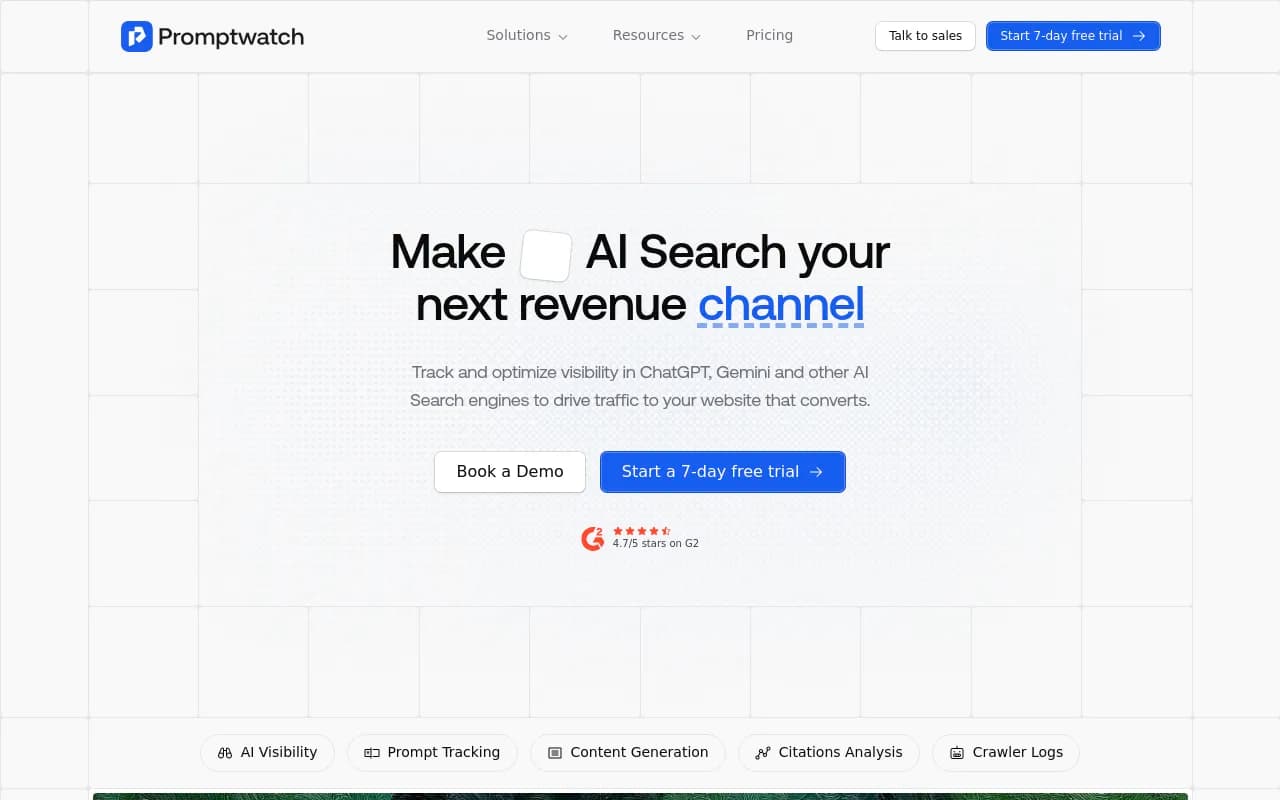
Other options worth a look depend on what you want:
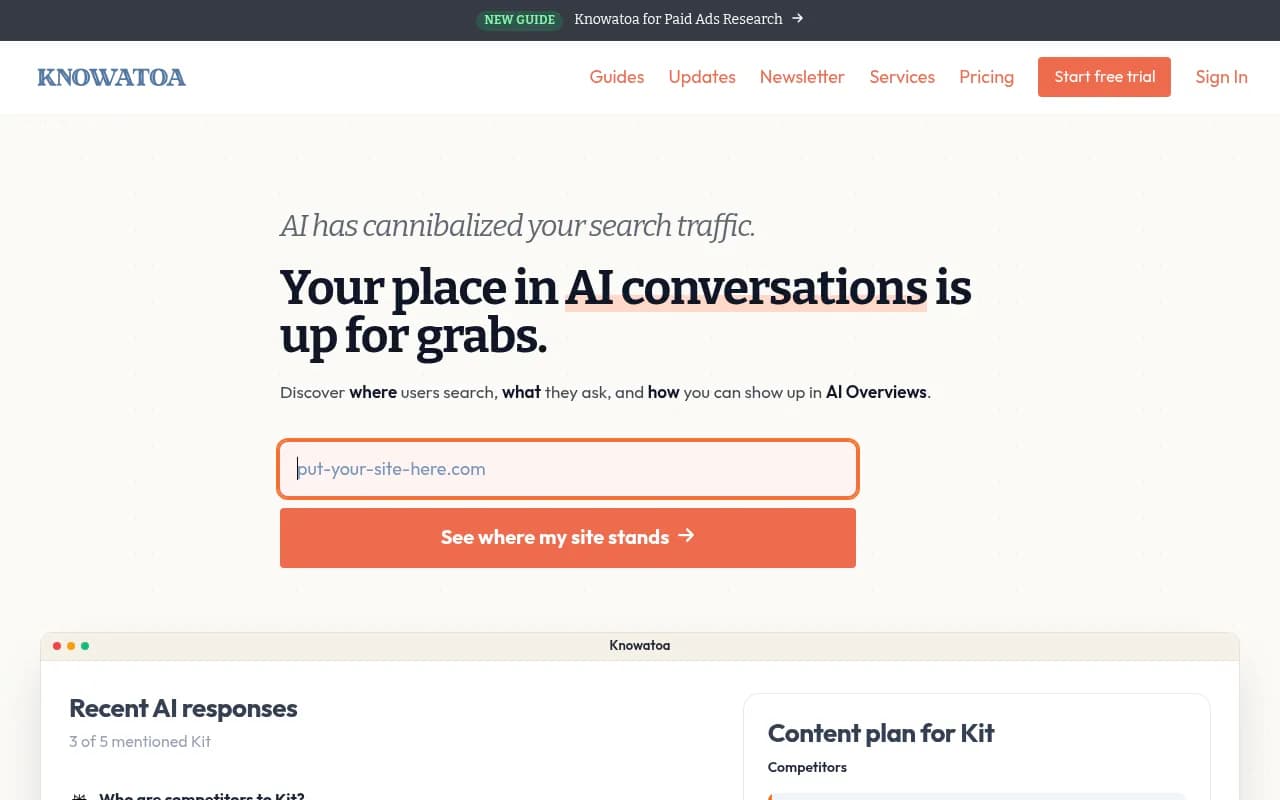
Knowatoa is focused on AI Overviews and AI Mode monitoring, which matches this guide's narrow scope.
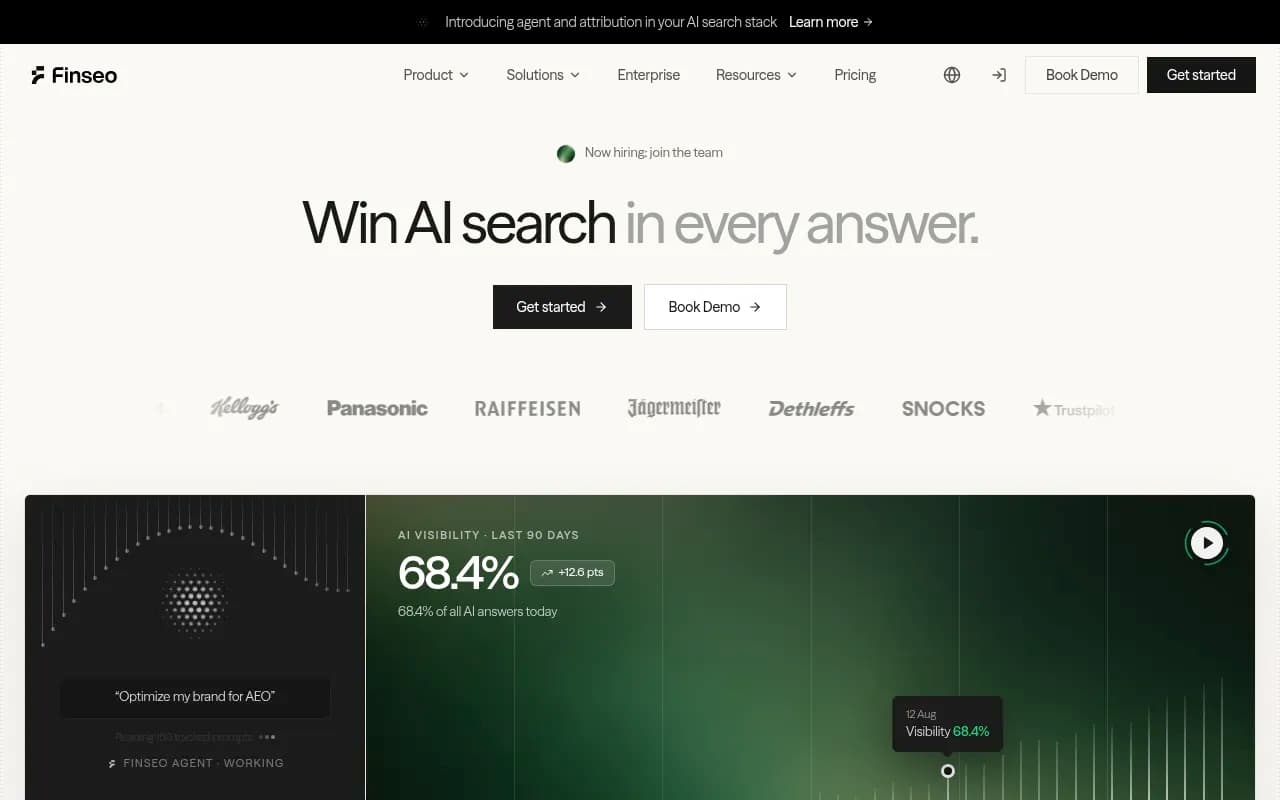
Finseo covers Google AI Mode and AI Overviews visibility too.

Otterly.AI is a low-cost monitoring option for teams that mainly need tracking.
Thruuu is aimed at content teams monitoring AI Overviews.
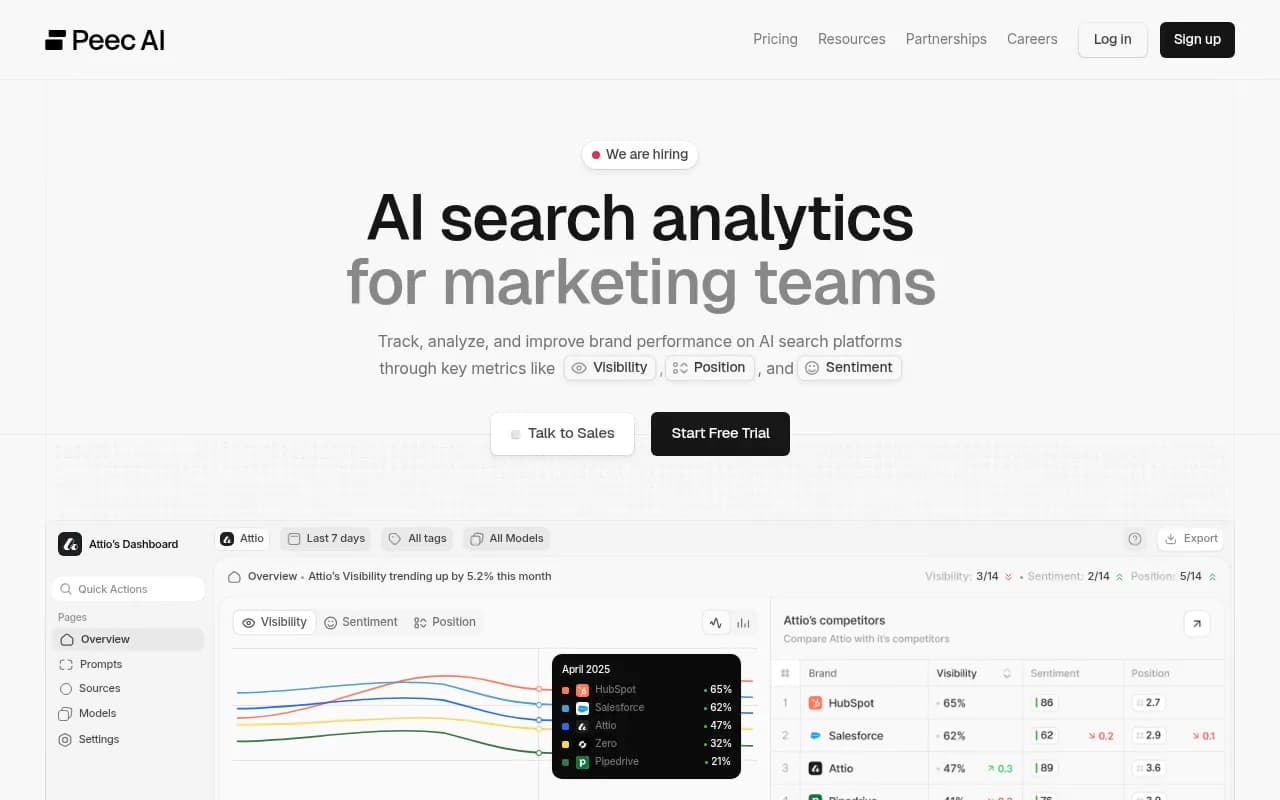
Peec AI handles multi-language tracking.
If you already live in an SEO suite, Semrush One bundles AI visibility with the rest of your stack.
| Option | Best for | What you give up |
|---|---|---|
| Spreadsheet | Under 30 prompts, proving the concept | Daily data, multi-model, traffic attribution |
| Promptwatch | End-to-end: tracking, crawler logs, traffic, content fixes | More than you need if you only want a weekly check |
| Knowatoa, Finseo | AIO and AI Mode focus | Narrower scope |
| Otterly.AI, Peec AI | Lower-cost monitoring, multi-language | Less on the optimization side |
| Semrush One | Teams already on Semrush | Prompt sets can be less flexible than purpose-built tools |
I haven't compared pricing for these here, so check each vendor's page before deciding. To browse more options by category, the GEO software directory at bestgeosoftware.com is a decent starting point, and ai-rank-tools.com lists rank trackers specifically.
Reducing the grunt work before you switch
If you want to stay in a spreadsheet a bit longer, automation can trim the data entry. Tools like [tool:zapier] or [tool:n8n] can push exports into a sheet, and [tool:airtable] works well as a step up if you want relational tables instead of tabs. None of these solve the data collection problem, though. Someone or something still has to see the AI Overview.
A short migration checklist
- Export Prompts as CSV with IDs, topics, intent, and country.
- Export Observations as CSV with ISO dates.
- Write down your Definitions tab and match it to the tool's settings for brand aliases and competitors.
- Run the tool and your sheet in parallel for two to four weeks.
- Compare the numbers, note the differences, and mark the changeover date in your reporting.
- Archive the sheet. Don't delete it.
The parallel run is where you'll learn how noisy your manual numbers were. Expect the tool to disagree with your sheet on some prompts. That's normal, and usually it's the sheet that's wrong.
Summary
Build three tabs, log every observation in long format, tag source type and content type, and capture the total number of sources so you can compute share of slots. Write your definitions down. Check weekly under consistent conditions, and read trends over weeks, not days. When the routine starts eating hours or the questions outgrow Google AI Overviews, export the CSVs and move to a tool. If you did it right, the move takes an afternoon.