Key takeaways
- Most AI visibility platforms gate their Looker Studio connector behind mid-tier plans (Promptwatch needs Professional+ at $245/mo, OtterlyAI needs Standard+ at $189/mo). If you're on an entry plan, you're stuck with CSV exports.
- Looker Studio caps blended tables at 5 data sources, which matters a lot once you're running dashboards for 6+ clients off separate API keys.
- Connector data is not live. It's cached server-side for a few minutes, then Looker Studio adds its own refresh interval on top. Set that expectation with clients before you promise "real-time."
- You generally need one API key, scoped to one project, per client. That's the pattern across Promptwatch, OtterlyAI, and LLM Pulse.
- For quick, no-dashboard reporting, scheduled PDFs or CSV exports are often faster to ship than a full Looker Studio build, especially for smaller accounts.
Why agencies keep asking about this
I've seen the same question pop up in marketing subreddits every few weeks: how do you actually show clients their AI visibility data without logging them into five different dashboards? One thread in r/b2bmarketing had people cobbling together Retool or Glide apps just to pull CSVs into a script and output something presentable. That's a lot of duct tape for a reporting problem.
The good news is that this has gotten a lot easier in the last year. Several AI visibility tools now ship native Looker Studio connectors, which means the CSV-export-into-spreadsheet routine isn't mandatory anymore. The bad news is that the connectors aren't identical, the pricing gates are inconsistent, and Looker Studio itself has limits that nobody mentions until you hit them.
This guide walks through what's actually involved: connecting a tool, building the dashboard, and the specific gotchas that trip people up once you're managing more than one or two client accounts.
Step 1: pick a tool with an actual connector
Not every AI visibility tool offers a direct Looker Studio integration. Some only do CSV exports, which is fine for a one-off report but painful for recurring client dashboards you want to auto-refresh.
As of late 2026, three tools stand out for connector quality:
Promptwatch has a documented, step-by-step connector. You create a Project API key under Settings, scoped specifically for the Data Studio integration and set to read-only, then open a pre-built connector URL in Looker Studio, authorize with your Google account, and paste the key. One key maps to one project and one data source, which is the pattern agencies are told to follow: set up a key and a data source per client, then blend inside Looker Studio.
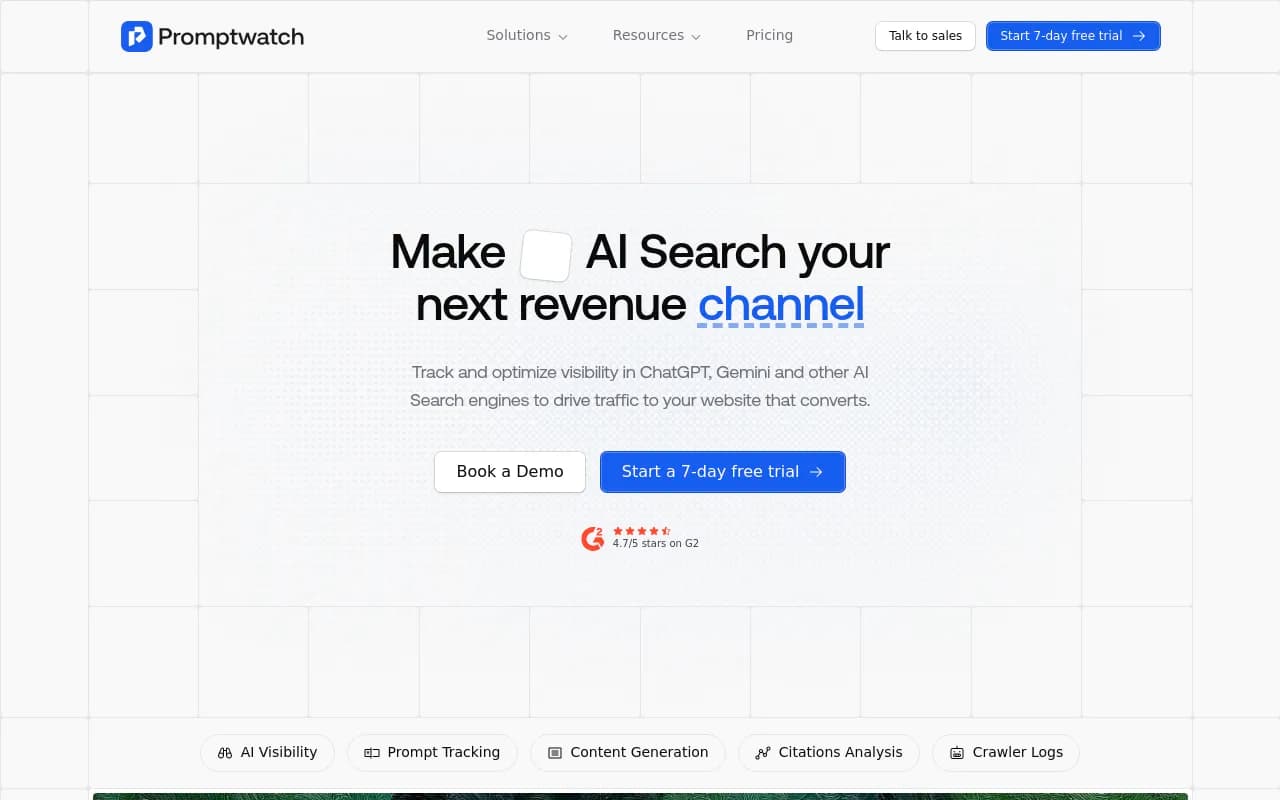
What you get through the connector is genuinely broad: visibility trends by day, week, or month, sentiment scores, share of voice versus the previous period, response and mention totals, citation data (self-citation frequency, which domains get cited, top cited pages), a competitor heatmap, and even crawler/visitor analytics showing which AI bots have been hitting your site. Shopping insights and ads data stay inside the app itself and don't flow into the connector.
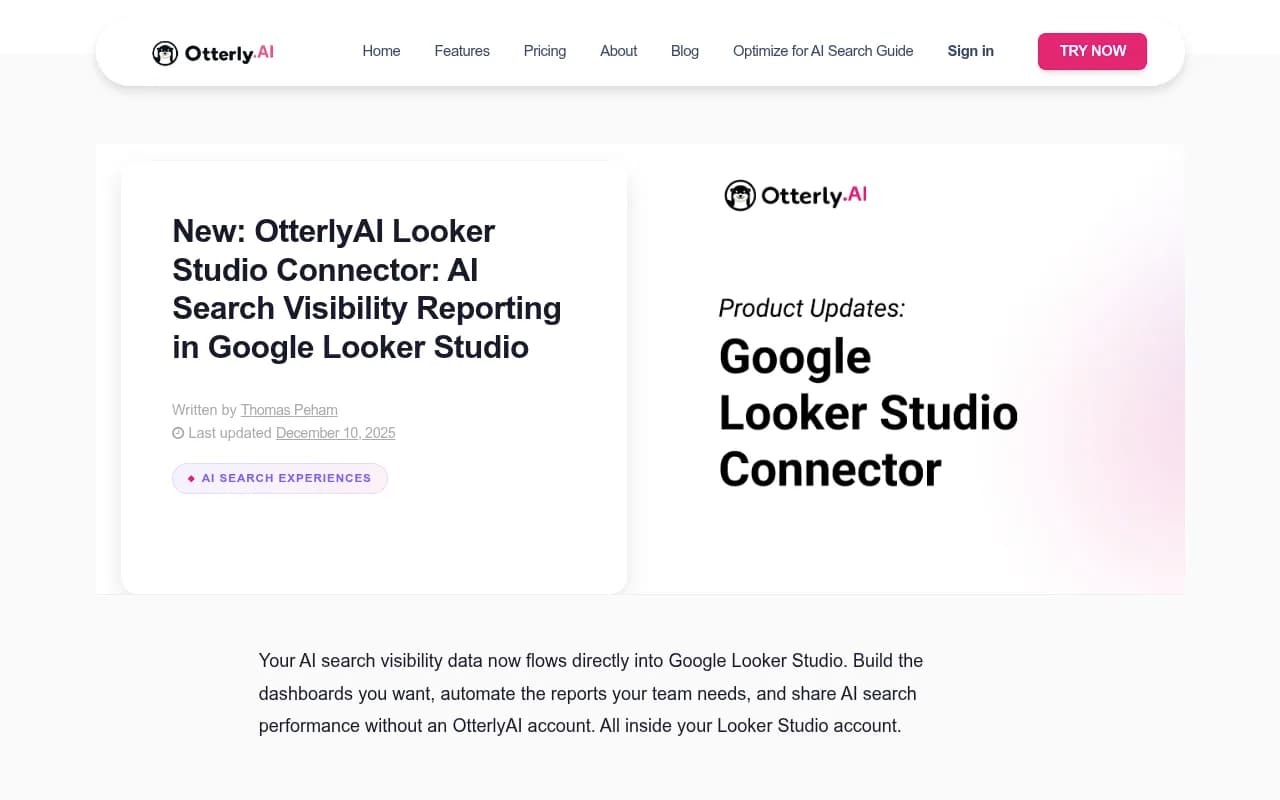
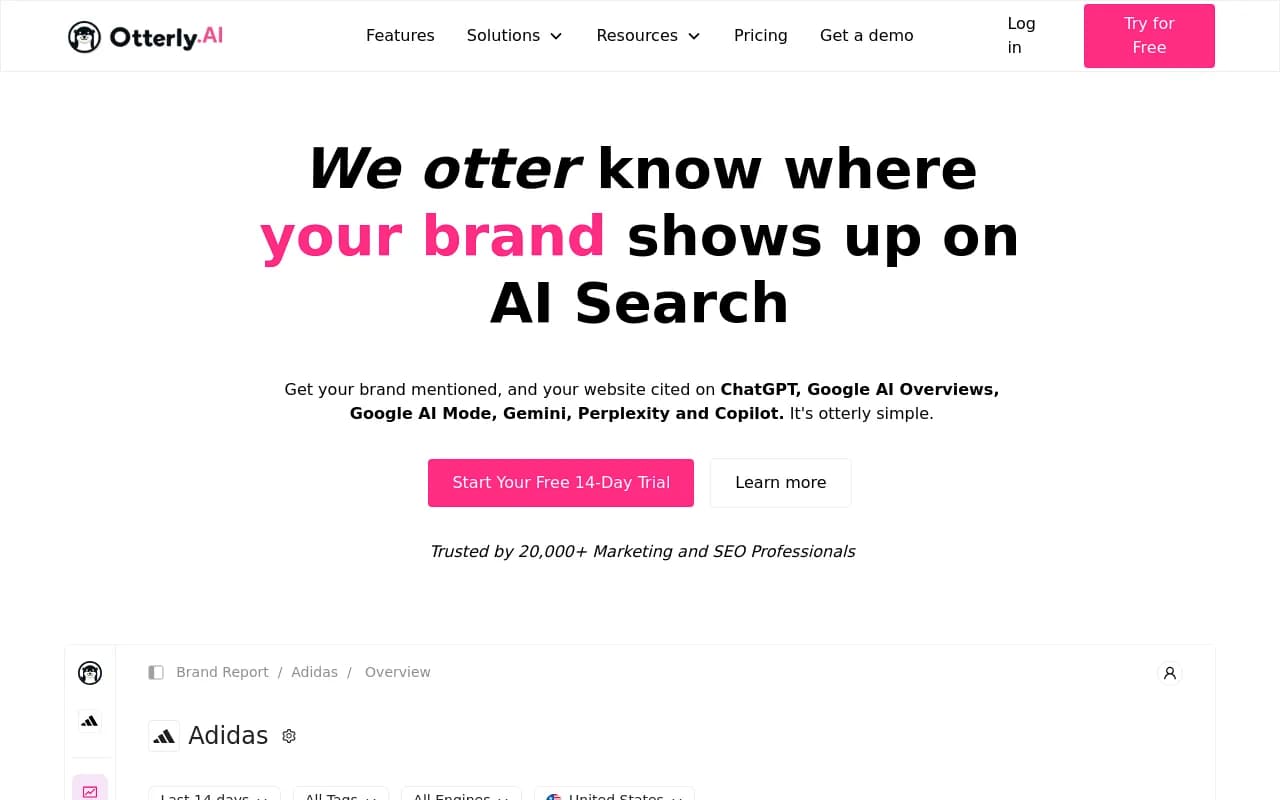
OtterlyAI takes a similar approach. Its connector pulls coverage percentage, mentions, share of voice, and average rank for brand metrics, plus domain coverage and ranking, filterable by date, country, and report. It supports ChatGPT, Perplexity, Google AI Overviews, Google AI Mode, and Microsoft Copilot, though notably not Claude or Gemini through the connector itself, even though those models are trackable inside the app with add-ons.
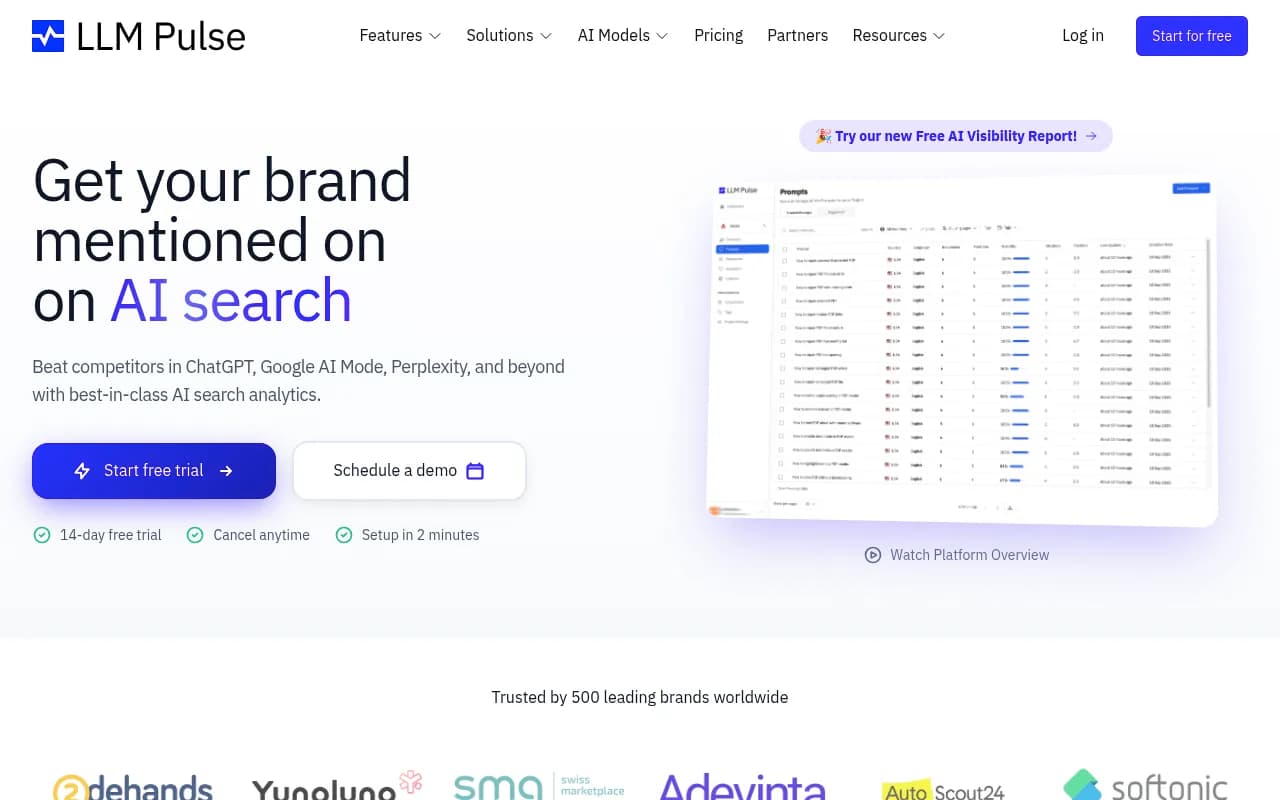
LLM Pulse offers something a bit different: a free community connector built on Google Apps Script, no license required, plus a free pre-built template. You install the connector, paste your API key, pick a project, and you're looking at real data in about five minutes, assuming you already have an active subscription with API access (the template alone just shows demo data).
| Tool | Connector type | Metrics available | Plan required for API/connector |
|---|---|---|---|
| Promptwatch | Native, project-scoped API key | Visibility, sentiment, share of voice, citations, crawler logs, competitor heatmap | Professional ($245/mo) and up |
| OtterlyAI | Native, workspace-level | Coverage %, mentions, share of voice, avg rank, domain coverage | Standard ($189/mo) and up |
| LLM Pulse | Free community connector + template | Mentions, citations, mention/citation rate, visibility score, sentiment buckets | Requires API-access subscription |
| Catchr (third-party, ChatGPT-only) | Paid connector | Visibility Score, Prominence Score, Frequency Score, Sentiment Modifier, Citation Bonus | Starter $24/mo and up |
If you're still shopping around for the right AI visibility tool before worrying about the Looker Studio piece, the directory at bestgeosoftware.com is a decent place to compare a wider set of options side by side.
Step 2: create the API key correctly
This step sounds trivial and it's where most support tickets originate. With Promptwatch, you go to Settings, then API Keys, and create a new key. Keep the key type set to "Project Key" rather than an org-wide key, because the Data Studio integration expects a key scoped to a single project. Permission should stay read-only; there's no reason a reporting dashboard needs write access to anything.
The key copies to your clipboard the moment it's created and shows as masked afterward, so grab it then and paste it straight into the connector's authorization screen. If you lose it, you'll need to generate a new one and rebuild the connection, because there's no way to reveal a masked key again.
A couple of things worth knowing before you do this for a client:
- If your plan doesn't include API access, the "create key" button will just be disabled with an upgrade prompt. No workaround.
- Downgrading a plan later silently breaks existing keys. They're not deleted, they just stop pulling data until you upgrade again. If a client dashboard suddenly goes blank, check billing before you start debugging the connector.
- Deleting a key kills every Looker Studio data source built on it. Treat these keys like production credentials, not throwaway test tokens.
Step 3: build or import the dashboard
Once the data source is live inside Looker Studio, you've got two paths. The faster one is loading a pre-built template, which most of these tools now ship. Promptwatch and OtterlyAI both offer a "Create Report" button right after you connect, which auto-loads a template with the core charts already laid out: visibility trend, share of voice, citation breakdown, sentiment over time.
The slower but more flexible path is building from scratch, which makes sense if you need the AI visibility data sitting next to GA4 or Google Search Console data in the same report. That's actually a common client request: they don't want a separate AI dashboard, they want AI visibility as one more tab alongside their existing SEO and traffic reporting. Looker Studio handles that fine as long as you're aware of the blending limit below.
Whichever path you choose, do one sanity check before sending anything to a client: pick one number you already know, like this week's visibility score, and confirm it matches what's shown in the dashboard. It takes thirty seconds and catches a surprising number of misconfigured filters.
The 5-source blend cap, and why it matters for agencies
Here's the limit nobody warns you about until you hit it: Looker Studio caps blended tables at five data sources per blend. That's not five total sources in a report, it's five per blended table specifically.
Since most AI visibility connectors are scoped per-client (one API key, one project, one data source), an agency running reports for, say, eight clients can't just dump all eight into one blended "master" table. You either accept the cap and build separate reports per client group, or you pre-aggregate everything into a data warehouse like BigQuery before it ever touches Looker Studio.
For most agencies, the practical answer is simpler: build one report per client rather than fighting the blend limit. It's more setup work upfront, but it also matches what clients actually want, which is their own dashboard, not a shared one with competitor data mixed in.
Set expectations on data freshness
Promptwatch is upfront about this in its own documentation, and it applies to basically every connector in this space: the API reads from a short server-side cache, a few minutes for fast-moving metrics like visibility and sentiment, longer for slower data like monitor configs. Looker Studio then adds its own refresh interval on top of that. The honest way to describe this to a client is "current enough for reporting," not "live." If someone on the client side expects a true real-time feed, that conversation needs to happen before the dashboard ships, not after.
Alternatives if you don't need a full dashboard
A Looker Studio build is overkill for some situations. If a client just wants a monthly PDF in their inbox, scheduled reports are faster to set up and require zero API key management. Promptwatch offers this natively, as do most of the other platforms. CSV export is the other fallback, useful for one-off deep dives, like pulling every response tagged with a specific competitor for a single analysis, rather than a recurring report.
There's also a growing option for ad-hoc questions: Promptwatch's MCP server lets you query visibility data conversationally through Claude, Cursor, or similar tools, without building a dashboard at all. It's not a replacement for a client-facing report, but it's handy for internal digging.
Picking the right tier for connector access
The API access gate is the thing that catches people most often when budgeting a reporting workflow. On Promptwatch, the connector only works from Professional ($245/mo) upward; Essential ($95/mo) doesn't include API access at all. OtterlyAI draws the same line between its Lite tier ($29/mo, no connector) and Standard ($189/mo, connector included). If you're pricing out a client engagement that includes a Looker Studio dashboard as a deliverable, build that tier cost into the proposal early, because finding out mid-project that you need to upgrade is an awkward conversation.
| Plan tier | Promptwatch | OtterlyAI |
|---|---|---|
| Entry (no connector) | Essential, $95/mo | Lite, $29/mo |
| Mid (connector included) | Professional, $245/mo | Standard, $189/mo |
| Top | Business, $579/mo | Premium, $489/mo |
A quick word on who this is for
If you're an in-house marketing team reporting to one or two executives, a single Looker Studio dashboard with a Promptwatch or OtterlyAI connector probably covers everything you need. If you're an agency juggling a dozen client accounts, the per-project key structure and the 5-source blend cap mean you'll likely end up running one report per client rather than one giant combined view, which is more setup time but a cleaner result for the client anyway.
For broader claims about what AI search engines actually cite and how that's shifted, it's worth grounding your reporting narrative in real numbers rather than guessing. Promptwatch's data on citation types ChatGPT is pulling from and the domain-level citation share for June 2026 are both useful to drop into a client-facing commentary section above the charts, since raw numbers alone don't always tell a client why their visibility moved.
If you're still evaluating which AI visibility tool to standardize on before building out your reporting stack, the comparisons at agenticseotools.com cover a wider set of options, including several with and without native Looker Studio support.