Key takeaways
- Promptwatch offers three methods for AI traffic attribution: referral tracking, Google Search Console integration, and server log analysis
- The GSC integration specifically tracks traffic from Google AI Overviews and AI Mode, showing which AI-generated answers drive clicks to your site
- Connecting GSC to Promptwatch closes the attribution loop: you see where your brand appears in AI search, then measure the actual traffic and conversions that result
- Unlike monitoring-only tools, Promptwatch connects visibility data to business outcomes -- you can prove ROI by tying AI citations to real visitors and revenue
- Setup takes about 10 minutes and requires Google Search Console property access
Why AI traffic attribution matters
You've invested in improving your brand's visibility in AI search engines. You're tracking mentions in ChatGPT, Perplexity, Claude, and Google AI Overviews. But here's the question that keeps coming up in board meetings: is any of this actually driving traffic to our website?
Most AI visibility tools stop at monitoring. They show you where your brand appears, how often you're cited, and which competitors are winning. That's useful, but it doesn't answer the business question. What you need is attribution -- a direct line from AI visibility to website traffic to conversions.
That's where Promptwatch's Google Search Console integration comes in. It connects your AI visibility data to actual traffic data from Google, specifically from AI Overviews and AI Mode. You see which AI-generated answers are sending people to your site, which pages they land on, and how that traffic converts.
The three methods Promptwatch uses for AI traffic attribution
Promptwatch offers three ways to measure AI-driven traffic:
-
Referral traffic tracking: Tracks visitors arriving from AI search engines via standard referral URLs (e.g. perplexity.ai, chatgpt.com). This works automatically once you add the tracking code snippet to your site.
-
Google Search Console integration: Pulls traffic data directly from GSC for Google AI Overviews and AI Mode. This is the most accurate method for Google's AI features because it uses first-party data straight from Google.
-
Server log analysis: Parses your server logs to identify AI crawler activity (ChatGPT, Claude, Perplexity bots) and correlate it with traffic patterns. This is the most technical option and requires log file access.
This guide focuses on the GSC integration because it's the most straightforward and gives you the cleanest attribution for Google AI traffic.
What the GSC integration actually does
When you connect Google Search Console to Promptwatch, you're giving Promptwatch read access to your GSC property. Promptwatch then pulls in traffic data specifically tagged as coming from "AI Overviews" and "AI Mode" -- Google's two main AI search features.
Here's what you get:
- Clicks from AI Overviews: How many people clicked through to your site from an AI-generated answer in Google Search
- Impressions: How many times your site appeared in an AI Overview or AI Mode result
- Click-through rate (CTR): The percentage of AI impressions that resulted in a click
- Average position: Where your site ranked within the AI-generated answer (if multiple sources were cited)
- Page-level data: Which specific pages on your site are getting traffic from AI search
This data lives inside Promptwatch alongside your AI visibility metrics. You can see, for example, that your brand was cited 47 times in Perplexity last week -- and 12 of those citations drove 83 clicks to your site via Google AI Overviews.
Step-by-step: How to connect Google Search Console to Promptwatch
Prerequisites
Before you start, make sure you have:
- A Promptwatch account (Professional plan or higher -- the Essential plan does not include GSC integration)
- Admin or Owner access to the Google Search Console property for your website
- Your website already verified in Google Search Console
If you don't have GSC set up yet, go to search.google.com/search-console and verify your site first. This usually takes 5-10 minutes.
Step 1: Log in to Promptwatch
Go to promptwatch.com and log in to your account. Navigate to the Settings section from the main menu.
Step 2: Find the integrations page
Inside Settings, look for Integrations or Data Sources. The exact label depends on your plan, but it's usually in the left sidebar under "Account Settings" or "Data Connections."
Step 3: Select Google Search Console
Click Connect Google Search Console or Add GSC Property. You'll see a button that says "Authorize with Google" or "Connect GSC Account."
Step 4: Authorize Promptwatch to access your GSC data
Click the authorization button. A Google OAuth popup will appear asking you to:
- Select the Google account that owns your GSC property
- Review the permissions Promptwatch is requesting (read-only access to Search Console data)
- Click Allow or Grant Access
Promptwatch only requests read permissions. It cannot modify your GSC settings or data.
Step 5: Select the property to connect
After authorization, you'll see a list of all GSC properties associated with your Google account. Select the property that matches the website you're tracking in Promptwatch.
If you have multiple sites in Promptwatch, repeat this process for each one.
Step 6: Confirm the connection
Once you've selected the property, Promptwatch will confirm the connection. You should see a green checkmark or success message. The initial data sync usually takes 5-10 minutes.
Step 7: Verify data is flowing
Go to your Promptwatch dashboard and look for the AI Traffic or Attribution section. You should start seeing data from Google AI Overviews and AI Mode within a few hours. Historical data (up to 16 months back, depending on your GSC retention) will populate over the next 24 hours.
What to do after connecting GSC
Once the integration is live, here's how to use it:
1. Identify which prompts drive traffic
Promptwatch shows you which AI-generated answers are sending visitors to your site. Cross-reference this with your prompt tracking data. If a prompt has high visibility but low traffic, that's a signal: either the AI answer isn't compelling enough to click, or your content isn't matching user intent.
2. Track page-level performance
See which pages on your site are getting cited in AI Overviews. Pages with high impressions but low CTR might need better meta descriptions or more compelling intros -- the parts of your content that AI engines surface in their answers.
3. Measure the impact of content changes
When you publish new content or optimize existing pages based on Promptwatch's Answer Gap Analysis, watch the GSC data to see if AI traffic increases. This closes the loop: you fix a content gap, AI engines start citing you, and GSC shows the traffic.
4. Compare AI traffic to traditional SEO traffic
Promptwatch's GSC integration separates AI traffic from regular organic search traffic. You can see how much of your Google traffic is coming from AI features vs traditional blue links. This helps you allocate resources -- if AI traffic is growing faster, invest more in GEO (Generative Engine Optimization).
5. Attribute revenue to AI visibility
If you have Google Analytics or another analytics platform connected, you can track conversions from AI traffic. Set up UTM parameters or use Promptwatch's event tracking to see which AI-driven visits turn into leads, signups, or sales.
Troubleshooting common issues
"No data available" after connecting GSC
If you see this message, wait 24 hours. Google's API can take time to populate historical data. If there's still no data after 24 hours, check:
- Is your site actually appearing in Google AI Overviews? Use Promptwatch's prompt tracking to confirm.
- Does your GSC property have data? Log in to GSC directly and check the Performance report.
- Did you connect the correct property? If you have multiple GSC properties (e.g. http vs https, www vs non-www), make sure you connected the one that matches your Promptwatch site.
"Authorization failed" or "Access denied"
This usually means you don't have Owner or Admin access to the GSC property. Contact your site administrator and ask them to grant you access, then try again.
Data doesn't match what I see in GSC
Promptwatch pulls data directly from the GSC API, so discrepancies are rare. If you see differences:
- Check the date range. Promptwatch might be showing a different time period than your GSC view.
- GSC data is sampled for very high-traffic sites. Promptwatch shows the sampled data, not extrapolated estimates.
- AI Overviews data in GSC is relatively new (rolled out in late 2024). Older data might not be available.
Can I disconnect and reconnect GSC?
Yes. Go to Settings > Integrations, click the three-dot menu next to your GSC connection, and select Disconnect. Historical data will remain in Promptwatch, but new data will stop syncing. You can reconnect anytime by repeating the authorization process.
Comparing Promptwatch's attribution methods
| Method | What it tracks | Pros | Cons | Best for |
|---|---|---|---|---|
| Referral tracking | Clicks from AI search engines via referral URLs | Easy setup, works for all AI engines | Relies on referrer headers (can be blocked or stripped) | Quick wins, broad visibility |
| GSC integration | Google AI Overviews and AI Mode traffic | Most accurate for Google AI, first-party data | Only covers Google, not ChatGPT/Perplexity/Claude | Google-focused brands, data accuracy |
| Server log analysis | AI crawler activity and traffic correlation | Catches all bot activity, no reliance on referrers | Technical setup, requires log access | Enterprise sites, technical teams |
For most users, the GSC integration is the sweet spot: accurate, easy to set up, and directly tied to Google's AI features. If you want full coverage across all AI engines, combine it with referral tracking.
Why this matters: The attribution gap in AI visibility
Most AI visibility tools -- Otterly.AI, Peec.ai, AthenaHQ, Search Party -- show you where your brand appears in AI search. That's table stakes. But they leave you stuck at "we're being cited" without answering "so what?"
Promptwatch's GSC integration closes that gap. You see the citation, you see the traffic, and you can tie it back to business outcomes. This is what separates a monitoring tool from an optimization platform.
Here's the action loop:
- Find the gaps: Answer Gap Analysis shows which prompts competitors rank for but you don't. You see the specific content your site is missing.
- Create content that ranks: The built-in AI writing agent generates articles grounded in real citation data (880M+ citations analyzed). This isn't generic filler -- it's content engineered to get cited by AI models.
- Track the results: GSC integration shows your visibility improving and the traffic following. Page-level tracking shows exactly which pages are being cited and how often.
Most competitors stop at step one. Promptwatch takes you through all three.
Advanced use cases
Multi-site tracking
If you manage multiple websites (e.g. different brands, regional sites, or a main site + blog subdomain), connect each GSC property to its corresponding Promptwatch site. You can then compare AI traffic performance across properties and see which sites are winning in AI search.
Agency reporting
Agencies using Promptwatch can pull GSC data for client sites and include it in monthly reports. This gives you a concrete metric to show ROI: "We improved your AI visibility by 40%, which drove 1,200 new visitors from Google AI Overviews this month."
Competitive analysis
While you can't connect a competitor's GSC to Promptwatch (you don't have access), you can use Promptwatch's competitor tracking to estimate their AI traffic. Compare their visibility scores to your own traffic data to infer how much traffic they're likely getting.
Other tools that integrate with Google Search Console
Promptwatch isn't the only platform that connects to GSC, but it's one of the few that specifically isolates AI traffic. Here are some alternatives:
- Semrush: Pulls GSC data into its Position Tracking tool, but doesn't separate AI traffic from regular organic
- Ahrefs Brand Radar: Monitors brand mentions in AI search but doesn't integrate with GSC for traffic attribution
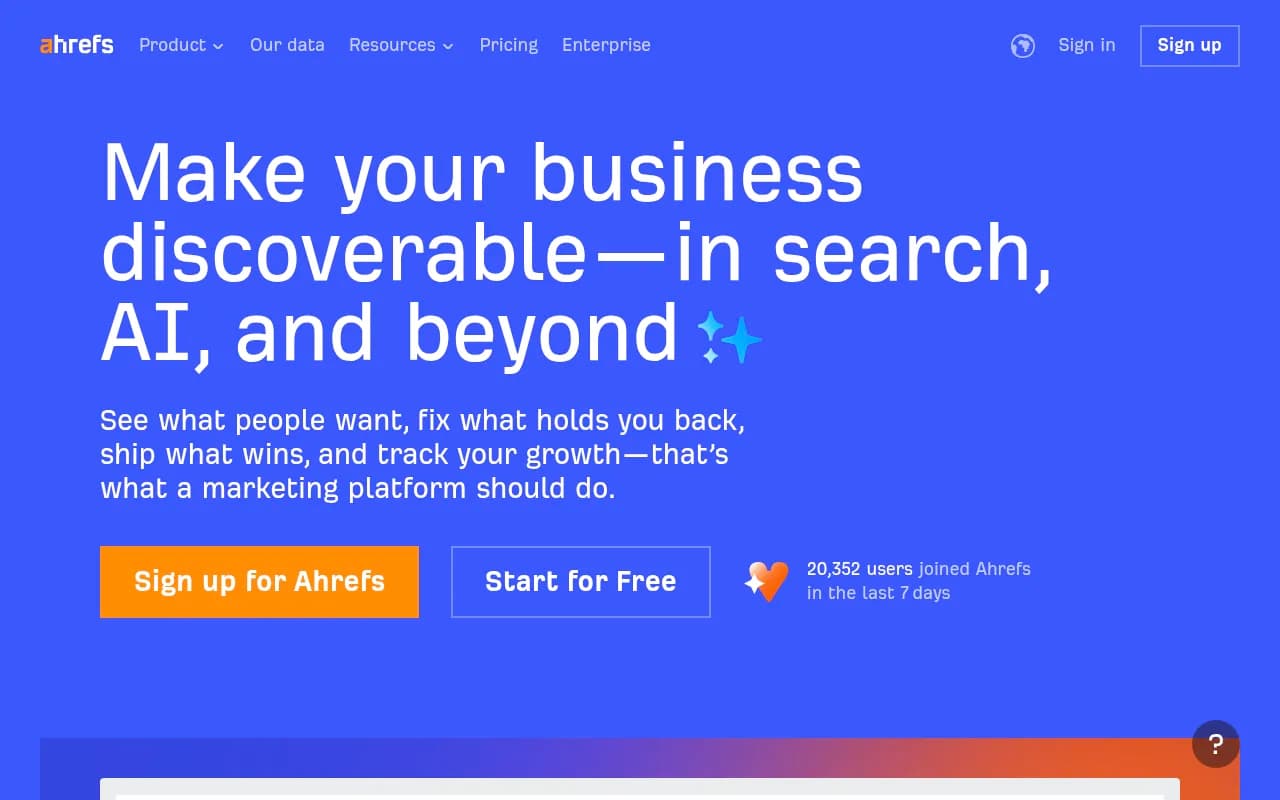
- Conductor: Offers GSC integration and AI visibility tracking, but lacks the content generation and optimization features Promptwatch includes
If your goal is specifically to track and optimize for AI search, Promptwatch's GSC integration is purpose-built for that. Traditional SEO tools treat AI traffic as a side feature, not the main event.
What's next after setup
Once your GSC integration is live, here's what to focus on:
- Set up custom dashboards: Create views in Promptwatch that show AI traffic alongside visibility metrics. This gives you a single pane of glass for AI performance.
- Enable traffic alerts: Configure Promptwatch to notify you when AI traffic spikes or drops. This helps you catch issues (or wins) early.
- Run Answer Gap Analysis: Use Promptwatch's gap analysis tool to find prompts where competitors are visible but you're not. Prioritize the ones with high traffic potential based on your GSC data.
- Generate content: Use Promptwatch's AI writing agent to create articles targeting those gaps. The agent uses citation data to write content that AI models want to cite.
- Track the loop: Monitor your visibility scores, GSC traffic, and conversions. Adjust your content strategy based on what's working.
This is the cycle that separates brands that monitor AI search from brands that dominate it.
Final thoughts
Connecting Promptwatch to Google Search Console takes 10 minutes and gives you something most AI visibility tools don't: proof that your AI optimization work is driving real traffic. You're not just tracking mentions -- you're measuring business impact.
The GSC integration is part of Promptwatch's broader attribution suite, which includes referral tracking and server log analysis. Together, these tools close the loop between AI visibility and revenue. You see where you're cited, you see the traffic, and you can tie it back to conversions.
If you're serious about AI search visibility, this integration is non-negotiable. It's the difference between "we think this is working" and "here's the data that proves it."
Ready to connect? Log in to Promptwatch, go to Settings > Integrations, and click Connect Google Search Console. The setup takes less time than reading this guide.